
By Daily Carry Lab. Manufacturer documentation checked October 15, 2026 (Pacific).
Research disclosure: This guide uses manufacturer documentation, not hands-on testing. We have not measured reliability, performance or comfort.
Affiliate disclosure: As an Amazon Associate, Daily Carry Lab earns from qualifying purchases. Retailer links may earn a commission at no extra cost to you.
A presentation remote is worth comparing when you need to advance slides away from the laptop. First identify the computer that will run the slides, the connections you can use on it, and the surface on which people will see your pointer. Buying a laser clicker does not resolve all three questions.
This guide examines the Logitech R500s, Graphite 910-006518 as one documented receiver/Bluetooth option. We selected it because the two connection paths and physical-laser limitation illustrate useful purchase decisions. We have not tested range, button feel, slide-app reliability or pointer visibility. This is not a ranking of remotes or a recommendation of every R500-labelled listing.
Receiver or Bluetooth on the actual presentation computer?
| Connection | Manufacturer’s documented requirements | Buyer check and drawback |
|---|---|---|
| Logitech proprietary receiver | Available USB port; Windows 10/11 or later, macOS X 10.12 or later, ChromeOS, or Linux 2.6+ as listed | Confirm the receiver’s physical plug fits the computer or permitted adapter; keep the receiver with the remote |
| Bluetooth | Bluetooth; Windows 10/11 or later, macOS X 10.12 or later, iOS 8 or later, Android 5.0 or later | Check pairing permissions on the host; the receiver OS list is not identical to the Bluetooth list |
| Optional button customisation | Logi Options+ for recent Windows/macOS versions; internet access to download | Check current app requirements and installation permission separately from basic hardware support |
These are the connection-specific lists in the current R500s specification payload, not a claim that every old OS still receives software updates. The page’s broader marketing text also mentions presentation apps such as Google Slides, Prezi, PDF and PowerPoint. That list does not prove your app version, browser mode and managed computer support every custom button action.
For a borrowed computer, ask the organiser which connection they allow. Pairing a remote to your own laptop in advance does not pair it to the room computer. If you cannot install software, decide whether basic navigation meets the need before paying for customisation features. A USB-C-only laptop also needs a physical-port check; this guide does not certify an arbitrary receiver adapter.
Physical laser versus an on-screen pointer
The R500s uses a red physical laser. Logitech warns that its light is less noticeable on LCD and plasma screens and directs buyers who need a digital pointer toward a different product. The R500s is therefore a candidate for slide navigation plus a physical pointer only when that pointer suits the display surface. Do not assume a red dot on a wall will be equally visible on a television.
For a remote audience, decide whether viewers need to see the pointer inside the shared slide image. A physical light on the room’s screen is not itself a software cursor overlay. Check your presentation app’s digital pointer or annotation tools if that is the requirement. This is a workflow distinction, not a DCL test of screen-sharing software. The October 29 Spotlight section adds a documented digital-pointer option; it does not establish a performance winner.
| Presentation need | What to verify before purchase | R500s limitation |
|---|---|---|
| Move around the room while advancing slides | Connection policy, slide app and intended operating position | Manufacturer quotes up to 20 m, conditional on environment/computing conditions; no measured guarantee |
| Point at a projected surface | Visibility on that exact surface under room lighting | Physical red laser; room suitability untested |
| Point at an LCD/TV | Try the display or choose a verified digital-pointer workflow | Manufacturer explicitly flags reduced physical-laser visibility |
| Point for people watching a screen share | Whether the app sends the pointer/annotation to viewers | Physical laser is not a digital overlay |
Budget and kit tradeoffs
| Option | Spending decision | Remaining drawback |
|---|---|---|
| Use the computer’s existing slide controls | No additional hardware purchase if you can stay near the laptop | Does not provide a handheld navigation control |
| Buy the exact R500s configuration | Current exact-listing total is unknown here; check what comes with the receiver | Another wireless accessory and receiver to manage |
| Buy for advanced digital pointer features | Compare a separately verified product and its software requirements | Do not pay for features absent from this physical-laser model |
No current price, stock, rating or battery-endurance award is asserted. The captured retailer title says R500s and identifies part 910-006518, while one generic field shortens the model to R500. Match the exact part rather than treating that abbreviated field as a different product specification. Manufacturer documentation governs the compatibility discussion.
Rehearse the whole path
Open the actual slide file on the intended computer. Select the planned receiver or Bluetooth route, then check forward/back navigation with the app in the mode you will use. Confirm any pointer or custom action from the audience’s position. Keep local input controls accessible in case you need them. These are practical rehearsal steps for the owner, not results of testing by Daily Carry Lab.
If your main problem is typing into a phone or laptop, see our travel keyboard comparison. For supporting a tablet on the desk, see travel tablet stands. Neither changes which computer actually receives a presentation remote’s commands.
Choose this type of remote when handheld slide navigation and the documented connection routes solve the problem. Keep comparing when a visible digital pointer, locked-down host policy or an unverified presentation app is the deciding requirement.
Check the status light before replacing a working remote
Logitech’s R500s setup guide, checked October 22, 2026, identifies a low-battery state that disables the laser to conserve power. A missing laser dot can therefore be a battery decision as well as the display-surface limitation discussed above.
| Status or action | Documented meaning | What to resolve before buying replacement hardware |
|---|---|---|
| Red light pulses | Low battery; laser disabled for power saving | Check battery condition before declaring the pointer broken |
| White light stays steady during the battery check | Battery indicated good | This alone does not certify slide-app communication |
| White light flashes rapidly | Attempting Bluetooth pairing | Complete pairing on the intended presentation host |
| Receiver appears missing | Remote includes a receiver-storage location | Check that compartment before ordering a replacement |
For Bluetooth setup, Logitech specifies holding the top and bottom buttons together for three seconds; the pairing window then lasts three minutes. That timing describes setup availability, not a reconnection-speed promise.
Long-press slide-start and blank-screen functions in the guide require Logi Options+. Keep that software requirement separate from simple forward/back navigation when rehearsing on a restricted host. DCL has not tested these states or functions. Battery and permitted accessory costs remain unverified; there is no new endurance estimate here. Our buying advice is to distinguish battery, pairing and app setup before spending on another remote, while retaining all the physical-laser limitations above.
Pack for the remote power behavior as well as the receiver
The R500s has power-management behavior worth checking before replacing it or choosing a rechargeable alternative. Logitech’s R500s setup guide, rechecked October 24, 2026, specifies one AAA battery and claims 12 months of battery life, qualified by user and computing conditions. This is a manufacturer estimate, not a DCL endurance measurement or a calendar replacement guarantee.
| Documented behavior | Implication for the travel kit | What it does not prove |
|---|---|---|
| Deep sleep after 30 minutes of inactivity | Check operation on the actual presentation computer after a long pause | No wake or reconnect time is established here |
| Immediate deep sleep when not connected to a computer | Loss of host connection can change power state | It is not proof that every unresponsive remote has a depleted battery |
| Laser stops after two minutes of continuous pressing | A stopped laser can reflect the timed control | It does not remove the separate low-battery or display-surface limitations |
| Single AAA cell | Check the installed battery and any permitted spare before packing | No USB-rechargeable internal battery is documented by this guide |
These distinctions matter when comparing complete kits. A replaceable-cell remote needs battery planning rather than the charging cable you would pack for a rechargeable device. Conversely, a long advertised battery estimate does not guarantee that an already installed cell will last through the next trip. Rehearse navigation after the planned connection and slide app are ready; do not infer a pairing failure or dead battery solely from inactivity.
The two-minute laser cutoff also describes a different condition from the pulsing-red low-battery state discussed above. Identify which behavior you see before purchasing a replacement remote. We have not tested the cutoff, wake behavior or the quoted battery estimate, and make no promise of uninterrupted presenting.
Budget and drawback: include a suitable replacement cell if needed, plus any permitted receiver adapter. Actual prices remain unknown. Retaining a working R500s can avoid another remote purchase when its documented navigation and physical-laser limitations fit the task. If you need a digital pointer or cannot use the required host connection, battery management does not solve that separate buying problem.
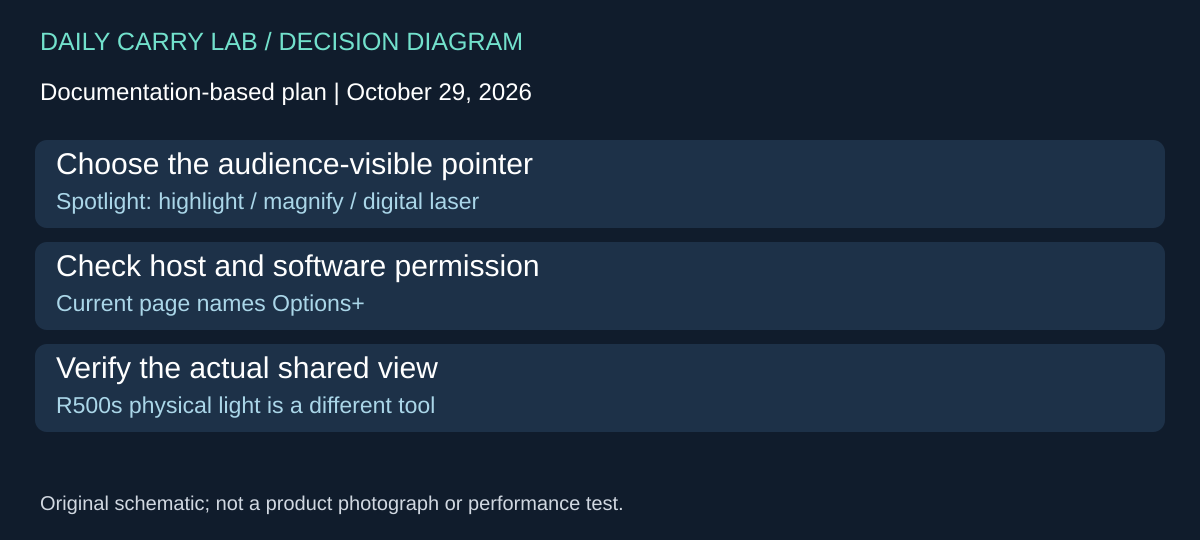
Spotlight adds a digital-pointer option, with a software decision
The R500s physical-laser limitation is a concrete reason to compare another type of remote. The current Logitech Spotlight page, Slate selection, checked October 29, 2026, documents Highlight, Magnify and Digital Laser pointing modes. Logitech describes their use with projectors, TV screens, video conferencing and multi-screen setups. Digital Laser is an on-screen mode; the name should not be read as a promise of a physical laser beam.
| What matters to you | Current Spotlight documentation | Decision before replacing R500s |
|---|---|---|
| On-screen highlighting or magnification | Highlight and Magnify modes | Identify the visual aid you actually need |
| A pointer for a hybrid presentation | Digital Laser and video-conferencing use described | Verify what the remote audience receives in the actual sharing setup |
| Host connection | USB receiver or Bluetooth low energy | Check the presentation computer, not just your own laptop |
| Configure pointing and button behavior | Current page names Logi Options+ | Check supported software and permission to install/configure it |
Logitech lists Windows/macOS and several presentation and conferencing applications, but that does not validate every operating-system version, workplace policy or screen-sharing mode. In particular, an application name on a product page cannot demonstrate that a selected window share sends the intended overlay to everyone. For a purchase contingent on this feature, rehearse with the presentation host and have a remote participant confirm the result before relying on it. This is a proposed acceptance check, not a DCL test.
The buying distinction is whether the pointer solves a requirement left unmet by navigation alone. A remote that already advances slides adequately may need no replacement if a pointer is unnecessary or the presentation app’s existing controls meet the need. If you need magnification visible to distant participants, that is a reason to investigate the documented digital system and its software rather than buying another physical-laser clicker on a range claim.
Budget and drawback: current complete delivered totals and an exact retailer package are unknown. The Slate product selection is not proof of a particular seller’s part number, included accessories or Spotlight Plus identity. No retailer link is admitted. We have not tested overlay capture, software permissions or room performance, and do not rank Spotlight against R500s by battery endurance or reliability. Choose only after the actual host, required software and audience view have been established.
Spotlight’s charging cable is not a replacement host connection
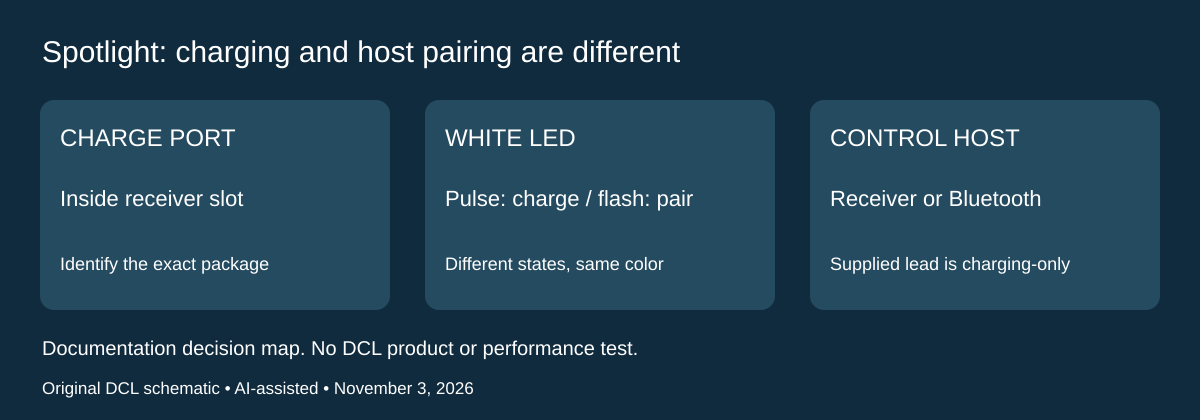
Research addition, November 3, 2026. A rechargeable remote changes the spare-power plan compared with R500s and its AAA cell. Before choosing Spotlight for a trip, establish both where its charge port is and how the computer receives commands. A charging indication alone does not establish presentation control.
Logitech’s Spotlight charging instructions, checked today, locate the USB-C port inside the receiver-storage slot at the bottom of the remote: remove the receiver to reach it. The documented supplied lead is USB-A to USB-C. Its separate LED guide explicitly identifies the provided cable as charging-only.
| Observation or packing decision | Maker’s documented meaning | Buying consequence |
|---|---|---|
| Pulsing white LED | Battery is charging | Does not establish a host-control connection |
| Steady white LED | Battery is fully charged | Still check navigation in the actual slide application |
| Flashing white LED | Bluetooth pairing attempt | Distinguish pairing from the charging pulse |
| Solid red LED | Low battery; recharge | Plan access to charging rather than a replaceable AAA spare |
These instructions concern the named Spotlight, not Spotlight 2 or every similarly named seller package. They also describe a non-replaceable internal rechargeable battery. That makes access to the documented charging arrangement part of the kit; carrying R500s’s spare AAA does not supply that function. Do not infer a new seller’s included cable merely from this support description, or assume a USB-C-only computer has the documented USB-A socket available.
The retained Spotlight product discussion and older support pages do not agree on every battery-duration/charging-time figure. We therefore make no new full-charge time or endurance comparison. The supported decision here is the charge-port, charge-state and host-connection distinction. A displayed charge state is not a tested number of presentation hours.
Budget and selection: include the exact offered cable, compatible power source and permitted receiver/Bluetooth path when comparing the complete kit. Current delivered totals are unknown. Keep a functioning R500s when replaceable-cell navigation already meets the requirement; investigate Spotlight when the digital-pointer features above solve a demonstrated need and its charging plan is practical. No wired presentation-control capability, replacement battery approval or retailer identity is established by this addition. We have not tested LEDs, charging, pairing or presenting while connected to power.
Spotlight gestures: decide whether the room permits the required software
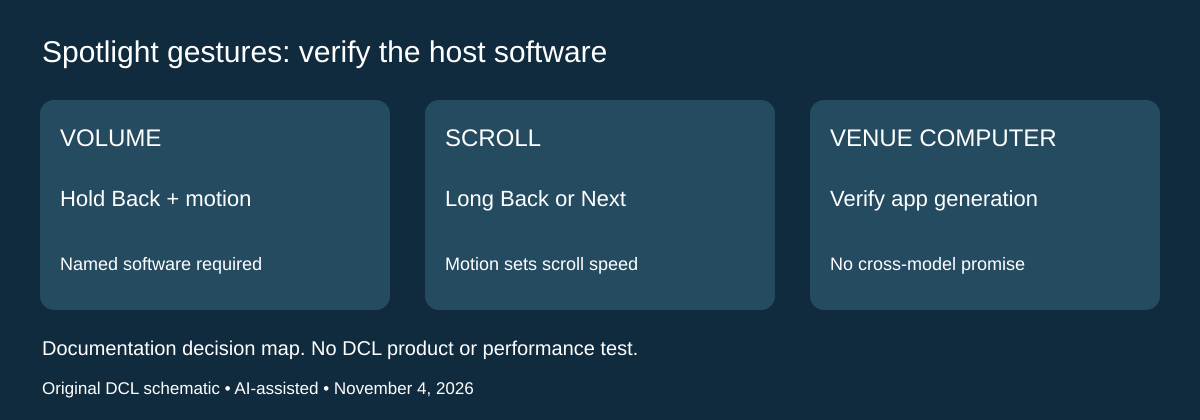
Research checked November 4, 2026. If you need to adjust presentation audio or scroll away from the computer, slide-forward buttons alone may not answer the requirement. Logitech’s original Spotlight gesture support article documents those controls with Logitech Presentation software. It is evidence for that named arrangement, not a guarantee for Spotlight 2, R500s or every current Options+ installation.
| Desired control | Documented original Spotlight arrangement | Buying or setup drawback |
|---|---|---|
| Gesture-controlled volume | Assign Volume in Hold Back; hold Back while moving the hand up or down | Requires the named software and configuration on the presenting host |
| Gesture-controlled scrolling | Assign scrolling to a long press of Back or Next | Motion controls scroll speed; this is not evidence of a dedicated scroll wheel |
| Use a borrowed venue computer | Establish which software/version the room permits | Working receiver or Bluetooth navigation alone does not prove gesture access |
| Keep simple slide navigation | Compare the existing remote’s working controls first | A gesture feature may add no needed capability |
The manufacturer’s instructions describe the motion sensors supplying the volume adjustment and a similar motion-based scrolling function. We have not measured sensitivity, accuracy or accidental activation. A long press is a different interaction from a short slide-navigation press; rehearse both on the intended host before relying on the configuration. This is a reader acceptance check, not a DCL test.
There is a software-generation boundary to resolve. The current product discussion earlier in this guide names Options+, whereas this retained support article explicitly names Logitech Presentation. Do not combine an old menu path with a new app’s feature list and call the result verified. If gestures are the reason for purchase, confirm the exact original Spotlight model, available software and required action on the actual presentation computer. If that evidence is unavailable, treat the gesture-dependent purchase as unresolved while comparing ordinary navigation separately.
Budget and selection: current remote, cable, adapter and delivered totals remain unknown. Keep an owned remote when it already supplies the controls you need. Consider additional motion controls only for a demonstrated requirement and a permitted setup. The documented gesture feature does not establish audience-visible annotations, screen-sharing behavior or operation without software. No new retailer mapping is admitted here. We have not installed either software generation, tested a venue computer or compared Spotlight and R500s in use.
Shop the researched models
These Amazon links are affiliate links. Daily Carry Lab may earn a commission from qualifying purchases. Match the model and included contents to your needs; this guide is based on manufacturer-source research, without hands-on testing.
-
Logitech R500s Graphite 910-006518
Exact model; no unverified accessory inclusion promise
Check Logitech R500s Graphite 910-006518 on Amazon
Sources and limits
This guide compares published specifications and source documentation. Daily Carry Lab has not performed hands-on tests of the products in this guide. Consult the dated sources and verify the exact model and current terms before buying.
- logitech-r500s primary documentation
- logi-r500s primary documentation
- October 29 remote primary support
- Logitech Spotlight charging instructions: internal battery, slot and supplied cable
- Logitech Spotlight LED guide: pairing/charging/full/low and charging-only cable
- Original Spotlight support: Logitech Presentation; Hold Back Volume; scroll assignment
Related guides
Portable document scanners: choose the feed, power and file workflow
Compare Epson ES-50 and ES-60W simplex workflows with discontinued Brother DS-740D duplex limits, USB power and current software checks.
USB-C Ethernet adapters: match the host, driver and network rate
Compare TP-Link, Plugable and Belkin INC012 Ethernet adapters by host connector, link rate, tether reach and complete kit. Research; throughput untested.
Bluetooth numeric keypads: check layout, host and charging
Compare Satechi ST-XLABKM with the documented Microsoft Number Pad Windows route. Check layout, host support and replaceable battery versus charging.
Compact drawing tablets: active area and current driver checks
Compare One by Wacom Small CTL-472 by drawing area, packed size and dated Windows/Mac driver support. Screenless pen input tradeoffs without testing claims.