
By Daily Carry Lab. Manufacturer documentation checked October 15, 2026 (Pacific).
Research disclosure: This guide uses manufacturer documentation, not hands-on testing. We have not measured reliability, performance or comfort.
Affiliate disclosure: As an Amazon Associate, Daily Carry Lab earns from qualifying purchases. Retailer links may earn a commission at no extra cost to you.
A screenless pen tablet is a candidate when you want pen input on an existing laptop without buying another display. You draw on the tablet while watching the laptop screen. That is a different purchase from an iPad stylus, an E Ink notebook or a pen display that shows the image under the pen.
This guide examines One by Wacom Small, CTL-472, with the captured US retailer configuration CTL472K1A. The core CTL-472 review explains active area, packed footprint and current driver support; the October 29 Intuos Small comparison adds a separate connection and controls decision. We have not drawn with it, tested pressure response, measured accuracy or compared learning time. “Wacom One” display products and the larger CTL-672 are not interchangeable names for this Small tablet.
Drawing area is smaller than the body you pack
| CTL-472 specification | Published value | What to compare |
|---|---|---|
| Active pen area | 152 × 95 mm | The drawing surface available for your hand movements |
| Body | 210 × 146 × 8.7 mm, excluding tag/rubber foot | Bag opening, desk footprint and protection around the surface |
| Tablet weight | Approximately 260 g | Add the separate cable and pen to your own packed-kit plan |
| Pen | Battery-free electromagnetic design, 2,048 pressure levels | Pen input requires compatible software; the number is not a DCL quality score |
| USB power | 5 V host supply with 500 mA capacity in the factsheet | Tablet host connection is separate from the battery-free pen |
Source: Wacom’s CTL-472/672 factsheet, with distinct Small and Medium columns. This historical 2017 sheet is used for the named hardware geometry and included pen. Its old Windows 7/OS X 10.10 baseline is not used to promise current driver support.
The factsheet lists a one-metre USB cable, pen, three standard replacement nibs and nib-removal tool for the Small package. Check the current exact seller’s configuration rather than assuming every used or regional bundle has all of them. We have not certified a protective sleeve, replacement-pen compatibility outside the documented model, or a particular USB-C adapter.
Current driver evidence, separate from the old factsheet
Wacom’s 6.4.15-1 release notes, released October 6, 2026, explicitly include One by Wacom CTL-472/672. The Windows release notes list Windows 10/11 x64 and Windows 11 ARM64. The Mac release notes list macOS 13–15, 26 and 27. These are dated support lists, not a guarantee that every drawing app works identically.
| Compatibility layer | Evidence or check | Purchase implication |
|---|---|---|
| Exact tablet | CTL-472 appears in both current driver product lists | Select the Small tablet, not a similarly named display |
| Windows/Mac host | Match the installed OS/architecture to the cited release notes | Do not rely on the historical factsheet’s minimum OS |
| Software permission | Windows/Mac setup requires installing a Wacom driver; Mac notes flag Privacy & Security settings | Check access on a managed laptop before buying |
| Drawing app | Confirm pen/pressure support in the app you actually use | Driver support alone is not a guarantee of every app feature |
| Other hosts | No fresh exact-model Chromebook, Linux, Android or iPad workflow validated here | Do not infer those platforms from another Wacom product or retailer keyword |
Use Wacom’s official driver download route and check the exact product/OS at installation time. A driver version available today does not promise indefinite future compatibility. If installation is prohibited on a work laptop, resolve that policy before purchasing a tablet whose intended Windows/Mac workflow depends on it.
Is the Small active area the right compromise?
A smaller active area can be easier to accommodate on a limited desk, but you still need the larger body dimensions and cable space. Whether 152 × 95 mm suits your hand movement and screen setup is personal. We have not established comfort, precision or a learning curve from testing.
Mark the published active rectangle on paper and compare it with the movement you expect to make, then measure the available desk and bag opening separately. This is a planning exercise, not a substitute for using the tablet. If broad strokes are essential, investigate a larger active surface with its own model and support evidence rather than assuming the Small model is automatically best for travel.
Budget and drawbacks
| Choice | Budget evidence | Tradeoff |
|---|---|---|
| Keep mouse/trackpad input | No new tablet purchase | Does not add pressure-sensitive pen input |
| One by Wacom Small CTL472K1A | Current exact-configuration total and stock are unverified | Screenless drawing, driver setup and separate pen/cable storage |
| Buy a pen display or another tablet platform | Compare separately verified hardware and complete host/power cost | Not a like-for-like replacement justified by the Small tablet’s price or dimensions |
No tested accuracy ranking, current price ceiling, bundled-app entitlement or availability promise is made. Check the required app licence and any physical port adapter in the total. A battery-free pen does not mean the tablet is wireless: its documented host connection is USB.
For writing directly on an existing compatible iPad, compare the separate iPad stylus guide. For a device that contains its own reading/writing display, see E Ink note-taking tablets. Choose a screenless pen tablet when you want laptop pen input and accept looking at the host display; keep comparing when your key requirement is writing directly on the displayed image.
A second display changes the active-area decision
Before buying a larger tablet because your pen movements feel poorly matched to the screen, check which display area the driver controls. The CTL-472 help index links Wacom’s display-mapping instructions. These documents, checked October 22, 2026, describe mapping to all connected displays by default in a multiple-display setup, with an option to select one display in Wacom Center.
| Intended workspace | Mapping decision before comparing tablet sizes | Tradeoff |
|---|---|---|
| Laptop screen alone | Check the area assigned to that screen | Published tablet area is not a comfort measurement |
| Laptop plus external display | Consider selecting the drawing display instead of the combined desktop | Other screen areas then need another navigation route |
| Different screen and tablet proportions | Inspect the Force proportions setting | Preserving shape can leave some tablet area inactive |
| Frequently changing docks/displays | Recheck mapping after changing host display properties | The same physical tablet can have a different mapping setup |
Wacom’s Force proportions explanation says the setting starts off. Enabling it keeps the drawing proportions aligned with the display, potentially reducing the usable area. The 152 × 95 mm hardware specification therefore does not promise that the entire rectangle stays active in every configuration.
Our buying implication: compare the intended mapping and available active area before spending on a larger model. A larger tablet’s complete price remains unknown here, and this is not a finding that the Small will suit your hand movement. The help pages describe software controls; we have not tested their behaviour on CTL472K1A, a particular dock, or every supported driver/OS combination. Keep the driver-permission checks above.
Check the replaceable pen nib before buying another tablet
A worn pen tip is a consumable decision, separate from whether the CTL-472 active area fits your work. The CTL-472 help index links Wacom’s pen-nib replacement instructions, checked October 24, 2026. Wacom advises replacing a nib when it is approximately 1 mm or develops a sharp edge. That guidance supports inspecting the tip before assuming the whole tablet needs replacement.
| Maintenance check | Documented guidance | Buying boundary |
|---|---|---|
| Nib is worn short or has a sharp edge | Compare with Wacom’s replacement guidance | This is not evidence that every input problem is caused by wear |
| Removing the old nib | Use the included round metal tool where supplied, or the device’s documented remover | A generic illustration does not prove a hidden remover location on CTL-472 |
| Fitting a new nib | Slide it straight into the pen barrel and push slowly and firmly until it stops | Confirm the compatible nib for the actual pen; do not assume all Wacom tips interchange |
| Inventorying the kit | The cited CTL-472 factsheet lists replacement nibs and a tool | Verify what remains in your box or what the selected offer actually supplies |
The historical Small-model factsheet lists three standard replacement nibs and a nib-removal tool. That helps an owner know what to look for in the original packaging. It does not certify the contents of a used tablet or a current regional seller’s bundle. Wacom’s general help also illustrates several storage locations across different devices; do not transfer those locations to this exact tablet without its own evidence.
For travel, account for the pen and any compatible spare tips or tool you actually carry. The battery-free pen still has a physical contact tip; avoiding a pen charging cable does not eliminate maintenance. We have not measured nib life, scratching resistance or a relationship between tip wear and drawing accuracy.
Budget and drawback: check any included spares before pricing replacements, and obtain the exact compatible consumable rather than buying another tablet to solve a replaceable-tip issue. Current consumable and complete-kit prices remain unknown. Keep the driver, app and display-mapping checks above when troubleshooting input: replacing a nib does not establish software compatibility or fix an undersized drawing area.
Intuos Small Bluetooth adds controls, not a larger drawing rectangle
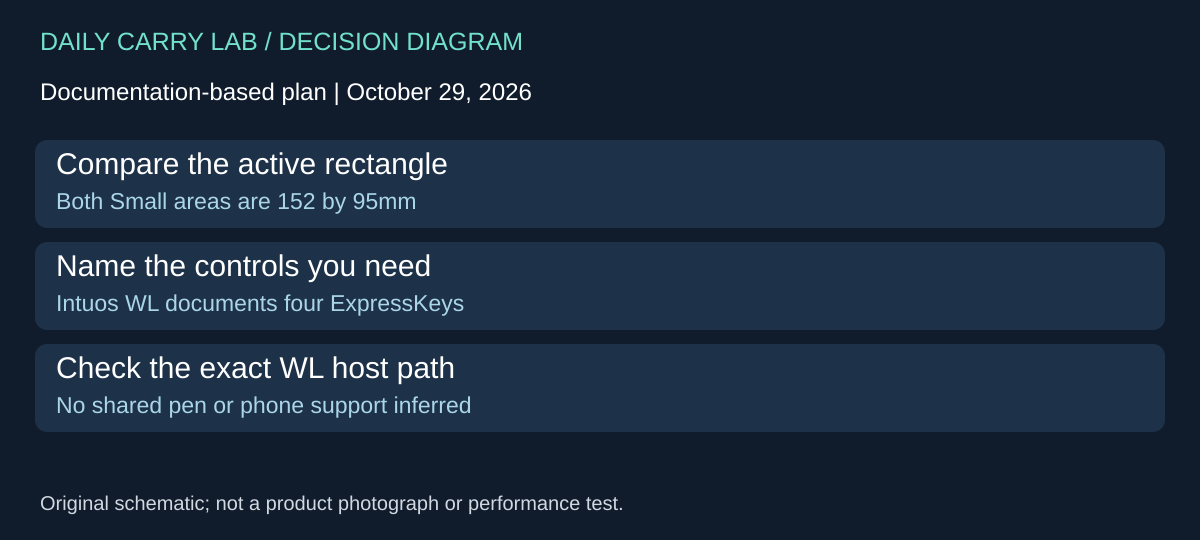
A buyer considering Wacom Intuos Small CTL-4100WL as an upgrade from One by Wacom Small should separate wireless operation from drawing area. Wacom’s Intuos product information, page 2, checked October 29, 2026, lists a 152 × 95mm active area for CTL-4100WL. That matches the CTL-472 hardware area already documented above. The alternative changes connection and control choices; its name does not establish more drawing room.
| Purchase requirement | CTL-472 retained above | Intuos Small CTL-4100WL | Drawback to assess |
|---|---|---|---|
| Larger drawing rectangle | 152 × 95mm | 152 × 95mm | This particular change does not enlarge it |
| Physical tablet controls | Current selected model described above | Four customizable application-specific ExpressKeys documented | Check the actions your software actually permits |
| Packed tablet body | 210 × 146 × 8.7mm | 200 × 160 × 8.8mm | A shorter dimension can accompany a wider body |
| Published tablet mass | About 260g | 250g | These figures exclude a complete protective kit |
The Intuos document lists USB or Bluetooth Classic as its interface and separately identifies wired CTL-4100 and wireless CTL-4100WL. Keep the WL suffix when checking a listing. We do not infer Bluetooth for CTL-472, nor a current regional bundle from this family-level document. Current retailer identity, included accessories and complete cost remain unverified, so this alternative has no purchase link here.
For a laptop owner, the next question is whether cable reduction and four physical shortcuts matter enough to choose a different tablet. Mark the identical active rectangle on paper first. If that area is already the limiting factor, buying another Small model with the same rectangle does not address that requirement. If reaching keyboard shortcuts is the issue, write down which four actions would occupy the ExpressKeys and check current driver/app support before spending.
Wireless operation also changes preparation. Establish the intended host’s supported connection and driver, and account for charging rather than assuming a battery-free pen makes the whole tablet independent of power. The dated CTL-472 driver list above is evidence for that selected product; this hardware comparison is not a fresh certification of CTL-4100WL on your OS, tablet or phone. Android Bluetooth support is not established by the captured material used here.
Budget and drawback: current exact-configuration prices are unknown. Keep CTL-472 if its cable and control arrangement already meet the task; investigate CTL-4100WL when its documented connection/control differences solve a named problem. Neither pressure-level counts nor a small published mass difference proves drawing quality, accuracy or comfort. DCL has not used either tablet, tested wireless reliability or verified a shared pen/nib ecosystem.
One by Wacom: choose cursor behavior before replacing the tablet
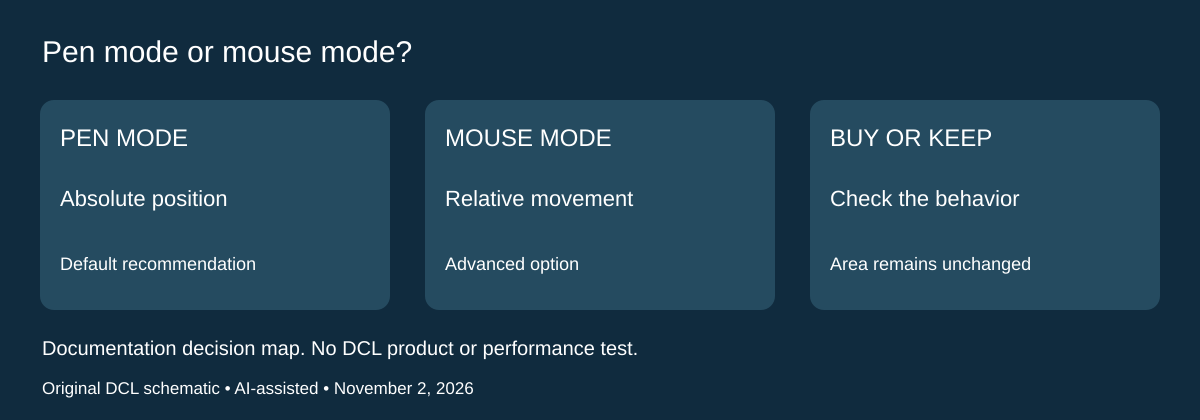
Research checked November 2, 2026. A screenless pen tablet can feel wrong because of its mapping mode rather than its drawing-area size. The One by Wacom CTL-472 help contents links to Wacom’s Advanced Mapping settings. That documentation distinguishes Pen mode, the default recommended mode, from Mouse mode, an advanced option.
| Expected cursor behavior | Documented mode | Tradeoff before buying |
|---|---|---|
| Put the pen at a tablet point and jump to its corresponding display point | Pen: absolute mapping | Your hand works within the mapped drawing rectangle |
| Lift the pen and keep the cursor where it was left | Mouse: relative movement | Operation resembles a mousepad or trackpad rather than paper |
| Map the device to selected displays | Wacom says Pen mode is required | Do not expect the same display-mapping controls to define Mouse mode |
| Adjust Mouse-mode movement | Mouse Height, Acceleration and Speed controls are available | Settings interact; no universally correct values are established |
Wacom’s documented route is Wacom Center → device → Mapping → Advanced, then the desired mode. Interface availability depends on the installed supported software; this is documentation for the linked device workflow, not a demonstration on every computer or operating system. It does not establish a driver-free mode switch on a managed work laptop.
For a buyer evaluation, describe the problem first. A cursor jumping to a fixed position is expected in Pen mode, whereas running out of comfortable drawing space is a separate issue. Try the appropriate documented mode and the actual creative application before attributing either behavior to defective hardware or choosing a larger model. That evaluation is DCL advice; we have not measured accuracy, learning time or comfort.
Wacom notes that Mouse Acceleration and Speed affect one another, and system mouse settings may affect Mouse-mode pen behavior. Changing Wacom’s controls does not itself change the corresponding system settings. Keep the two sets of controls distinct when diagnosing a setup; a borrowed computer may not behave like your usual one.
Budget and drawback: current replacement-tablet totals are unknown. Reusing the current CTL-472 may be sufficient when the mismatch is cursor behavior, but a mode setting cannot enlarge its physical active area or supply missing application support. Retain the model dimensions, driver checks and second-display mapping limits above. This section does not establish Bluetooth, a built-in screen or a performance advantage over another input device.
Shop the researched models
These Amazon links are affiliate links. Daily Carry Lab may earn a commission from qualifying purchases. Match the model and included contents to your needs; this guide is based on manufacturer-source research, without hands-on testing.
-
One by Wacom Small CTL472K1A
Small screenless USB tablet; no current accessory bundle certification
Check One by Wacom Small CTL472K1A on Amazon
Sources and limits
This guide compares published specifications and source documentation. Daily Carry Lab has not performed hands-on tests of the products in this guide. Consult the dated sources and verify the exact model and current terms before buying.
- wacom-spec primary documentation
- wacom-windows-current primary documentation
- wacom-mac-current primary documentation
- wacom-toc primary documentation
- wacom-mapping primary documentation
- wacom-proportions primary documentation
- Check the replaceable pen nib before buying another tablet primary documentation
- October 29 wacom primary documentation
- Wacom exact CTL-472 help contents links mapping guide
- Wacom Advanced Mapping settings Pen and Mouse modes
Related guides
Portable document scanners: choose the feed, power and file workflow
Compare Epson ES-50 and ES-60W simplex workflows with discontinued Brother DS-740D duplex limits, USB power and current software checks.
USB-C Ethernet adapters: match the host, driver and network rate
Compare TP-Link, Plugable and Belkin INC012 Ethernet adapters by host connector, link rate, tether reach and complete kit. Research; throughput untested.
Bluetooth numeric keypads: check layout, host and charging
Compare Satechi ST-XLABKM with the documented Microsoft Number Pad Windows route. Check layout, host support and replaceable battery versus charging.
HDMI switches: choose direction and check the complete cable run
Compare two-source A83H1 with four-source A83H2 HDMI switching, remote placement and cable requirements. Research; exact kit totals unknown.