By Daily Carry Lab. Primary documentation checked October 15, 2026 (Pacific).
Affiliate disclosure: As an Amazon Associate, Daily Carry Lab earns from qualifying purchases. Retailer links may earn a commission at no extra cost to you.
Research disclosure: We compared manufacturer product documentation, the family manual and support pages. We have not tested feed reliability, image quality, OCR accuracy, battery life or scanning speed. No DCL scores or hands-on results are claimed.
A travel document scanner makes most sense when feeding individual receipts or loose pages improves a workflow you repeat. Start with where the finished file needs to go. A USB scanner tied to a laptop, a battery-equipped wireless scanner and a phone camera can involve very different amounts of setup even when they all produce a PDF.
We selected Epson WorkForce ES-50, B11B252201, and ES-60W, B11B253201, because Epson documents their shared sheet-feed limits and their different connection and power paths. They are not substitutes for every desktop scanner. If your priority is unattended stacks of two-sided paperwork, neither model’s compact shape supplies the missing batch feeder or automatic two-sided capture.
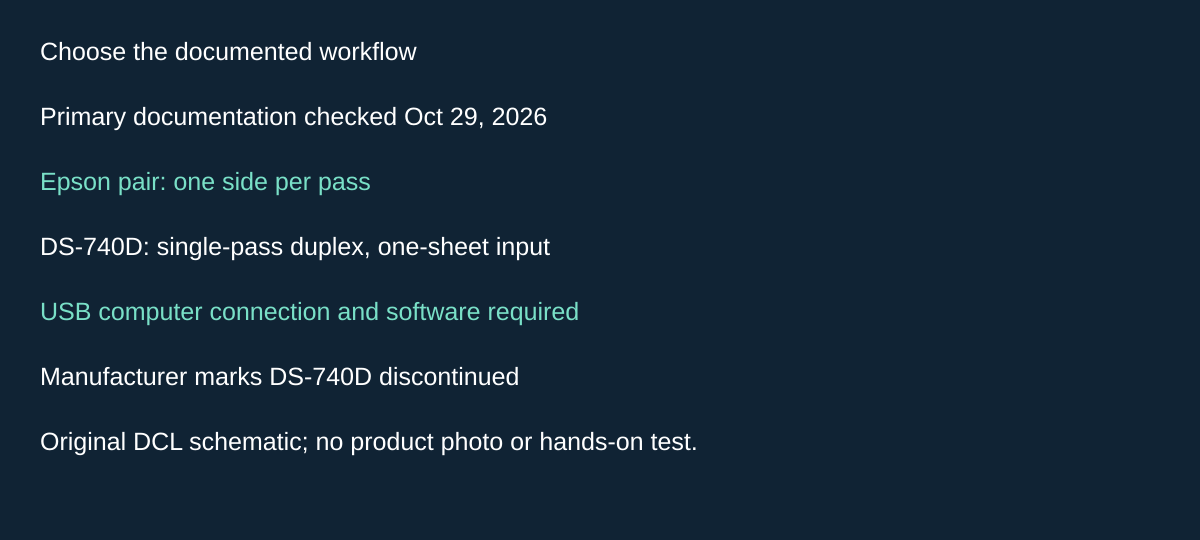
Original DCL research schematic, October 29, 2026; documented choices, not a product photograph or DCL test.
Single-pass duplex is a separate choice: evaluate DS-740D with its lifecycle limits
If repeatedly turning two-sided pages is the reason you are replacing a scanner, the Epson pair above does not supply automatic two-sided capture. Brother DS-740D demonstrates the alternative: its manufacturer page documents single-pass duplex scanning. The same page is marked Discontinued, checked October 29, 2026. We include it as a documented comparison for an existing or separately sourced unit, not as a current-stock recommendation.
| Requirement | Epson ES-50 / ES-60W above | DS-740D documented distinction |
|---|---|---|
| Capture both sides in one pass | Simplex; manual second-side handling | Single-pass duplex |
| Load a stack and leave it | Single-sheet feed | One-sheet input too; duplex does not add a stack feeder |
| Leave the computer behind | Investigate ES-60W’s limited mobile path | USB computer workflow; no standalone phone path established here |
| Use the vertical paper path to save rear clearance | Apply each Epson path’s own limits | Brother specifies narrower paper-weight limits for the vertical path |
The DS-740D brochure, page 2, is revised September 22, 2026. It lists paper weights of 9.3–72 lb for the straight path and 13.9–21.3 lb for the vertical path. A space-saving path therefore has a different supported paper range; do not treat compact operation as unrestricted media handling. The sheet directs readers to current support downloads for operating-system compatibility. It does not establish support for your exact current computer.
Brother’s USB cable guidance identifies the supplied A-to-micro-B USB 3.0 arrangement, recommends a direct computer connection with a cable no longer than six feet, and lists DS740D as powered when connected. A USB power bank alone therefore does not establish the documented computer scanning workflow.
Budget and drawback: current scanner, host-adapter and replacement-supply totals are unknown. For a discontinued unit, confirm current exact-OS downloads, condition, included cable/sheets and seller terms before any purchase. Reuse suitable hardware when practical. If unattended stacks are essential, investigate a documented feeder scanner instead. We have not tested either brand’s feed reliability, OCR, duplex alignment or current software support, and do not rank their advertised speeds.
Hardware and workflow comparison
| Exact model | Feed and sides | Power and connection decision | Principal limitation |
|---|---|---|---|
| ES-50 | Single-sheet feed; simplex, one side per pass | USB connection to a computer; no batteries or external supply required in that arrangement | Laptop/computer workflow rather than documented wireless phone scanning |
| ES-60W | Single-sheet feed; simplex, one side per pass | USB or documented wireless workflow; built-in rechargeable battery | Battery charge and wireless/app setup become additional dependencies |
Sources: ES-50 product page and Epson family manual, especially Product Basics and Technical Specifications. Automatic Feeding Mode can combine successive scans into a file; it does not turn the input slot into a stack-loading automatic document feeder. Turning pages manually also does not make the hardware an automatic duplex scanner.
For a laptop-based expense workflow, ES-50 removes a battery-management step. For a phone-led kit, investigate ES-60W’s exact mobile workflow before deciding the battery and wireless features are useful. A scanner being powered on does not establish that your phone can receive its output.
The paper and phone limits that matter
| Requirement | What Epson documents | Buying implication |
|---|---|---|
| Letter/A4 and longer plain-paper originals | Family manual lists sizes and paper weights; maximum document size reaches 8.5 × 72 inches under the documented settings | Check the relevant original-type table and resolution limits, rather than applying maximum length to every mode |
| Fragile originals, photographs or valuable artwork | Manual warns against loading them directly; appropriate carrier-sheet instructions apply | Do not buy a feed scanner assuming every original can safely enter bare |
| ES-60W phone scanning | Epson Smart Panel supports networked ES-60W/ES-65WR products; setup places phone and scanner on the same wireless network | Confirm app/device compatibility and available network before relying on a phone-only trip |
| Long receipts or carrier sheets through Smart Panel | Manual explicitly excludes these from Smart Panel scanning | A hardware paper-length specification does not establish that the mobile app supports that job |
The family manual separates mobile-app, document, receipt and plastic-card requirements. Read the table for the material you actually scan. We do not certify damage-free feeding, supported card embossing or successful hotel-network setup from those instructions alone.
Check software separately from the scanner
Epson’s ES-50 page describes ScanSmart and OCR functions, but that does not establish that every receipt-management feature is permanently included. The family manual identifies Invoice/Receipt Manager as included with ES-55R and ES-65WR and an upgrade for ES-50 and ES-60W. We do not treat a trial as an included ongoing license, and have not established a current upgrade price.
Before purchase, use Epson’s support page for the exact model and select your actual operating system. The ES-60W support page specifically warns that automatic OS detection may be wrong and provides a manual selector. Older OS lists in manuals are not sufficient proof of support for a newer installation. For ES-50, follow the Support link on its product page to its own downloads; an ES-60W installer is not automatically the right selection.
Try the intended sequence with a representative noncritical page: capture, rotate if necessary, save to your required file format, then open the result where it will be used. For searchable documents, inspect the actual recognized text. OCR availability is not a promise of accurate names, amounts or handwriting, and we have not measured it.
Budget and drawbacks
| Option | Exact delivered price evidence, October 15 | Other cost or workflow burden |
|---|---|---|
| Use an existing phone camera | No new scanner purchase if it meets your needs | Page positioning, file handling and OCR need evaluation |
| ES-50 | Current exact checkout total unknown | Compatible computer, USB connection, any required carrier sheet and separately licensed software |
| ES-60W | Current exact checkout total unknown | Battery charging, wireless setup, app compatibility and mobile-mode exclusions |
We make no cheapest-scanner claim or unsupported price ceiling. The useful distinction is whether you need a computer-tethered capture tool or the ES-60W’s documented wireless option, with its restrictions. If scans become large files you need to move, the USB-C flash-drive guide addresses storage selection separately; a storage device does not fix unsupported scanner software.
Include maintenance in the complete scanner kit
If you want ES-60W specifically to leave the laptop behind, inspect its maintenance workflow before buying. The Epson family guide, pages 81–84, checked October 22, 2026, routes internal cleaning and calibration through a connected computer and Epson Scan 2 Utility. Its illustrated ES-50 procedure also applies to ES-60W. Wireless document capture does not establish phone-only ownership for every task.
| Item or symptom | Documented maintenance choice | Ownership cost or drawback |
|---|---|---|
| Spots or lines in scans | Start with the supplied dry cleaning sheet | Keep the sheet with the scanner; Epson permits reuse |
| Dirt remaining after repeated dry cleaning | Optional wet sheet in maintenance kit B12B819481 | Wet sheet is single-use; current accessory price unknown |
| Blur or colour/brightness mismatch | Follow the separate calibration-sheet procedure | Calibration sheet is reusable and is not the wet cleaning sheet |
| ES-60W with low battery | Charge before cleaning or calibration | Maintenance will not start at low charge |
In the computer Utility, Maintenance contains separate Cleaning and Calibration choices. Use the corresponding sheet and the full model instructions rather than substituting a household cleaner. Epson directs owners to support if the wet-sheet step still fails to clean the scanner, or calibration fails to improve the image. This is a support boundary, not a promise that maintenance fixes every line or blur.
For a complete purchase total, account for the scanner, computer access when needed, retained sheets and any verified replacement consumables. The part number above identifies Epson’s optional accessory; it does not certify a retailer bundle or say the kit is included with every scanner offer. Existing scanner links retain their exact identities. We have not performed these procedures, tested sheet longevity or measured recovery in image quality. Buyers needing a wholly phone-only workflow should resolve this dependency before paying extra for wireless capture.
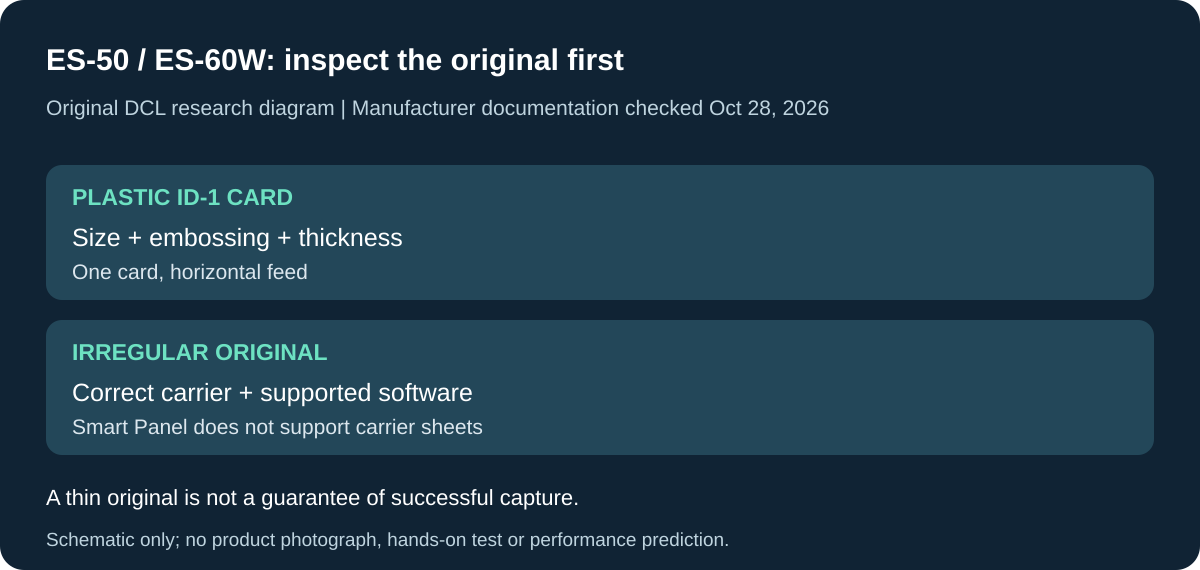
Original DCL research schematic, October 28, 2026. Documented setup boundaries, not a product photo or DCL test; see the source and qualifications below.
Match cards and irregular originals to the feed limits
A compact feed scanner is not automatically suitable for every card in a travel wallet. The ES-50/ES-60W family guide separates plastic-card thickness from paper and receipt limits. Before buying for ID capture, check the actual original against the correct table rather than treating the 72-inch paper headline as broad media compatibility. Epson guide, printed pages 19–25, checked October 28, 2026.
| Original | Documented boundary | Buying or packing implication |
|---|---|---|
| Embossed plastic card | ISO7810 ID-1, 54 × 85.6mm; at most 1.24mm thick; one card at a time | Check thickness including the raised surface; no stack feed |
| Unembossed plastic card | Same ID-1 size; at most 1.0mm thick | Do not transfer the embossed-card limit to every card |
| Laminated ID-1 card | Epson warns even cards 0.6mm thick or less may fail to scan successfully | Thin enough does not establish successful feeding or capture |
| Irregular paper original | Optional B12B819451 carrier sheet; up to A4, original at most 0.3mm thick excluding the sheet | Budget for the exact accessory and a supported computer workflow |
Epson directs plastic cards to enter horizontally, face up, against the left side of the slot; vertical or angled loading is cautioned against. A card holder or wallet is not part of that supported original. These instructions do not establish that every identity document is safe to scan, and we have not tested embossed-card feeding or image completeness.
For envelopes, the listed sizes are 120 × 235mm and 92 × 165mm, with a maximum thickness of 0.38mm. The guide excludes adhesive-bearing envelopes and gives flap-orientation instructions. If your regular job is bulky mail, booklets or joined paperwork, these narrow feed conditions are a reason to investigate a different capture method before purchasing this scanner.
The carrier sheet also has an ownership cost: Epson says to replace it if scratched or after more than 3,000 scans. That is a manufacturer’s replacement condition, not DCL’s tested service life. Smart Panel does not support carrier-sheet scanning, so buying the accessory does not remove the phone-workflow exclusion already explained above.
Budget and selection: current scanner and carrier-sheet prices are unknown. Retain an existing phone or suitable flatbed workflow if it captures your originals adequately; add the feed scanner only when its supported materials and handling fit the repeated task. Keep maintenance sheets and a carrier sheet distinct. Neither an optional accessory listing nor a thickness within the table guarantees undamaged originals or a successful scan.
A second computer on USB can interrupt the ES-60W wireless plan
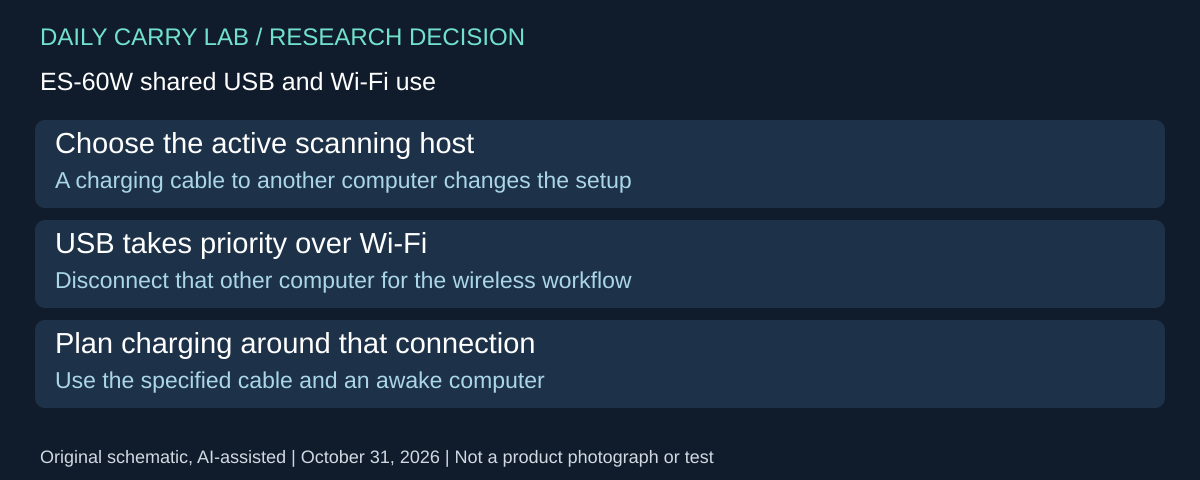
If two people share an ES-60W, do not assume one laptop can recharge it while another device continues the intended wireless scanning session. Epson’s family guide, page 91, checked October 31, 2026, says a USB connection takes priority over Wi-Fi and directs users to disconnect another USB-connected computer when resolving wireless scanning problems.
| Kit decision | Documented condition | Ownership consequence |
|---|---|---|
| Recharge from a computer | Computer on and awake; use the supplied micro-USB cable | Include a suitable charging opportunity |
| Plan around recharge time | About 3.5 hours; longer while the scanner is on | Manufacturer estimate, not DCL timing |
| Scan wirelessly while another computer is attached | USB has priority | Remove the other computer’s connection before assuming a Wi-Fi fault |
| Diagnose computer USB scanning | Direct connection; Epson cautions against a USB hub | A hub purchase is not a guaranteed solution |
Charging details come from pages 12–13 of the same guide. They do not certify an arbitrary wall charger, power bank, charge-only cable or adapter. Nor does a charged battery prove that the intended phone app supports your original type; retain the mobile exclusions above.
Before purchase, map the actual session: who receives the files, which connection they use and when charging happens. Try that sequence with a noncritical page and inspect the saved file. This is a suggested ownership check, not a workflow DCL has tested.
Budget and drawback: exact cable, host-adapter and scanner totals are unknown. Keep a supported existing connection if it meets the task; pay for wireless capture only when its complete arrangement helps. ES-50’s documented computer workflow remains a different choice. A second cable or larger power bank cannot by itself settle host priority, software support or file delivery.
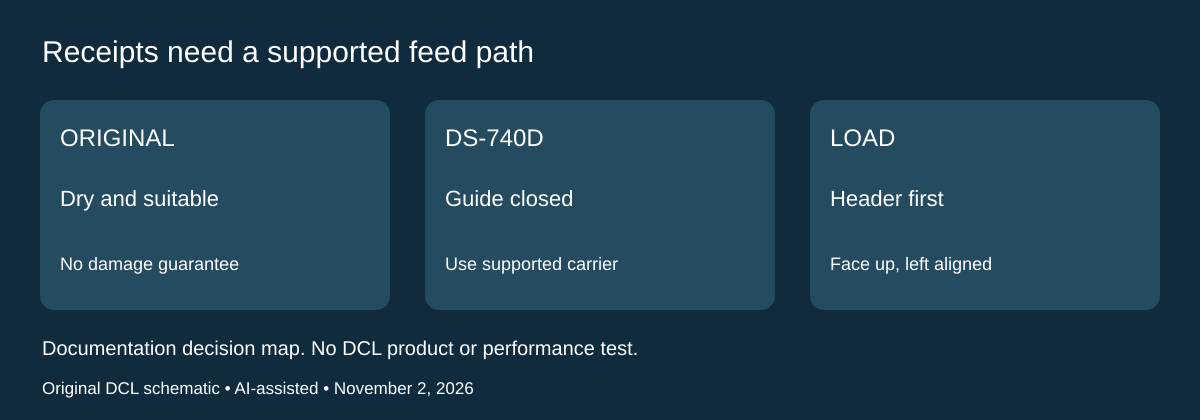
DS-740D: a receipt carrier sheet changes the return-paper path
Research checked November 2, 2026. For someone retaining a Brother DS-740D, delicate or non-standard originals need a different loading plan from ordinary sheets. Brother’s exact-model non-standard-document instructions, dated July 31, 2026, include receipts, newspaper clippings and photographs. They call for a carrier sheet and, on DS-740D, a closed Output Guide. Do not assume the compact redirected paper path is the right setting for this workflow.
| Preparation | Brother’s instruction | Practical drawback |
|---|---|---|
| Ink or correction fluid present | Let it dry completely before scanning | A receipt collected moments ago may need to wait |
| Position the original | Place it face up in the carrier’s left corner, top aligned to the carrier’s top-left corner | A loose stack is not the illustrated arrangement |
| Feed the carrier | Face up, header first, left edge aligned with the feeder’s left edge | Leave room for the supported paper path |
| Set the guide | Slide the Document Guide to the carrier’s right side; insert gently until it touches inside | Do not force the carrier through resistance |
Brother also illustrates folding a receipt longer than the carrier in two places so it overlaps inside. That does not establish a seamless full-length image or permit every valuable original to be folded. Decide whether the original can tolerate the documented handling before choosing this method; DCL has not tested feeding or image completeness.
The new selection question is whether the original and its handling requirements suit a portable feed scanner at all. The Epson-specific card thicknesses above cannot be transferred to Brother, and this Brother procedure does not approve Epson carriers in DS-740D. Identify a compatible carrier through the exact model’s accessory documentation before purchasing; no current accessory bundle or stock is verified here.
Budget and choice: current carrier, scanner and alternative-capture totals are unknown. An existing DS-740D plus the correct documented accessory may meet the need, while an irreplaceable item that should not be folded or fed calls for another capture method. This is a workflow decision, not a recommendation to buy discontinued hardware or a claim that a carrier prevents all damage. Preserve the software and lifecycle limits stated earlier in the guide.
DS-940DW: memory-card capture changes when you need the computer
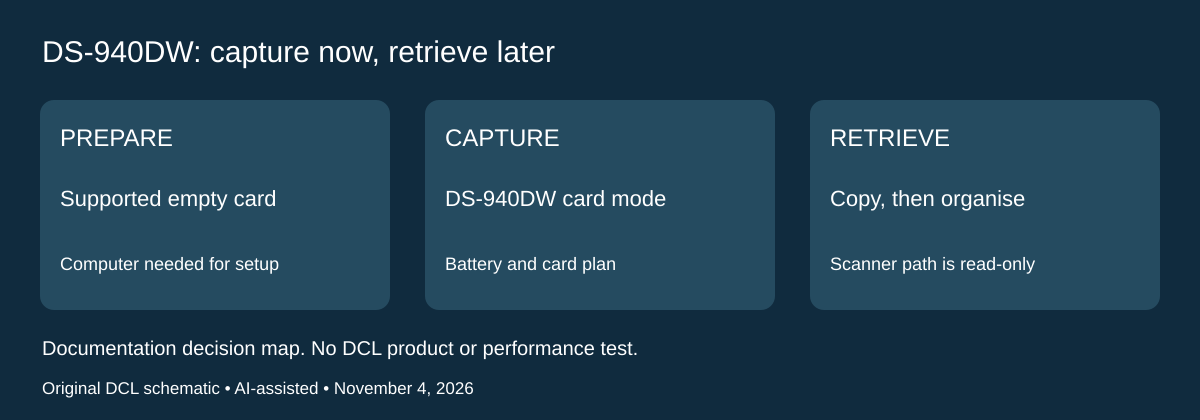
Research checked November 4, 2026. If leaving the laptop behind is the buying requirement, distinguish capturing a page from delivering its file. Brother’s DS-940DW product page documents a battery-equipped scanner with standalone microSD capture. This is an additional exact-model workflow, not a feature of the DS-740D above. It may suit someone who can collect documents now and retrieve them later; it is less compelling when every scan must immediately reach a phone or expense app.
| Requirement | DS-940DW evidence | Complete-kit consequence |
|---|---|---|
| Capture away from a computer | Embedded battery and standalone microSD capability | Plan card preparation, charge and later retrieval |
| Choose a card | Exact-model specifications list 2–32GB microSD/SDHC | Do not assume a larger card is supported |
| Unpack a complete kit | Manufacturer lists scanner, USB Micro-B cable, guides and calibration sheet; card is an additional purchase | A scanner-only offer is not the whole memory-card kit |
| Need immediate delivery | Memory-card capture stores the scan locally | Confirm a separate supported transfer/app workflow rather than assuming one |
Brother’s Scan to a Memory Card instructions, whose supported-model list names DS940DW, require computer preparation of a new card. Formatting erases existing data, so this is a setup task to complete with an appropriate empty card before travel, not an action to perform casually on a card holding important files. Use the complete illustrated instructions: an icon identifying the mode switch is not represented in our text transcription and is not reproduced as a guessed button position.
That support page also describes an important retrieval limit. Through the scanner’s computer connection in SD-card mode, the card is read-only for manual file management. Copy scans to the computer to manage them, or use a separate microSD reader as Brother describes. Do not buy this scanner on the assumption that its connected card behaves as an unrestricted writable drive. Capture, copying and organising are separate parts of the job.
For an existing owner, this distinction can prevent an unnecessary scanner replacement: a file-management restriction does not by itself establish broken capture hardware. For a buyer, it exposes the opposite risk: paying for standalone capture when the missing part of the trip is actually timely file delivery. A phone capture workflow may already meet that requirement; evaluate the resulting files before adding hardware. These are selection consequences, not DCL-tested reliability or OCR results.
Budget and drawbacks: exact scanner, card, reader and host-adapter totals are unknown. The manufacturer package is not a verified retailer bundle, stock or condition claim; no new purchase offer is added. Battery endurance, current-OS support and successful phone transfer are not established by the memory-card feature. Keep the earlier original-handling limits attached to their own models. The card-reader guide covers a separate transfer-accessory decision; a reader cannot supply a missing scan or repair an unsupported capture setup.
Shop the researched models
These Amazon links are affiliate links. Daily Carry Lab may earn a commission from qualifying purchases. Match the model and included contents to your needs; this guide is based on manufacturer-source research, without hands-on testing.
-
Epson WorkForce ES-50
Standalone scanner; B11B252201 maker model;not ES60W/55R
Check Epson WorkForce ES-50, B11B252201, on Amazon -
Epson WorkForce ES-60W
Standalone wireless scanner; B11B253201;not65WR
Check Epson WorkForce ES-60W, B11B253201, on Amazon
Sources and limits
This guide compares published specifications and source documentation. Daily Carry Lab has not performed hands-on tests of the products in this guide. Consult the dated sources and verify the exact model and current terms before buying.
- Epson ES-50 product specifications
- Epson ES-50/ES-60W family user guide
- Epson ES-60W support and OS-specific downloads
- October 29 editorial-portable-document-scanner primary documentation
- October 29 editorial-portable-document-scanner primary documentation
- October 29 editorial-portable-document-scanner primary documentation
- Brother DS-740D non-standard originals and closed Output Guide
- DS-940DW: About the Product, True scanning mobility, In the Box and Micro SD Card Additional Purchase disclaimer
- DS-940DW Specifications: Memory Card and power supply; exact model identity
- Scan to a Memory Card: preparation warning, read-only note and copy/reader alternatives; supported model DS940DW
Related guides
USB-C Ethernet adapters: match the host, driver and network rate
Compare TP-Link, Plugable and Belkin INC012 Ethernet adapters by host connector, link rate, tether reach and complete kit. Research; throughput untested.
Single-port 65W laptop chargers: profiles, plugs and cable limits
Compare Anker A2663 and Supertiny 65W for one USB-C laptop, including PPS evidence, plug variants and cable limits.
E Ink note-taking tablets: Scribe, reMarkable or BOOX?
Compare exact Kindle Scribe, reMarkable Paper Pro and BOOX Go10.3 Gen II models by pens, file export, lighting and subscription limits.
iPad Air keyboard cases: match the model, support and packed weight
Compare Apple MDFV4LL/A and Logitech Combo Touch 920-012626 by exact iPad compatibility, Smart Connector, trackpad, support and weight evidence.