
By Daily Carry Lab. Manufacturer documentation checked October 15, 2026 (Pacific).
Research disclosure: We have not tested these products. This guide uses manufacturer documentation and practical compatibility checks. We have not measured performance, reliability or comfort.
Affiliate disclosure: As an Amazon Associate, Daily Carry Lab earns from qualifying purchases. Retailer links may earn a commission at no extra cost to you.
A thumb trackball is a candidate when moving a mouse around a small desk is the problem. The device stays in place while the thumb rolls the ball. That changes the motion you use; it does not establish that the device will be comfortable for your hand or that you will work faster.
We selected Logitech ERGO M575S, Off-White with Blue Ball, SKU 910-007028, as a documented example. The reviewed Amazon candidate is B0BBPFCXSZ. The manufacturer’s US page initially displays the black variant, but its embedded exact-variant information separately identifies off-white 910-007028. The retail mapping must match that off-white SKU; black 910-007026, the older M575 and business variants are not interchangeable evidence.
This guide concerns stationary thumb control and receiver compatibility. Our travel mouse guide addresses a different moving-mouse decision. We have not measured tracking accuracy, click noise, learning time, comfort, muscle strain or productivity, and make no medical claim.
Daily Carry Lab publishes research guides for people choosing everyday carry, travel and desk accessories. This guide explains documented compatibility and buying tradeoffs.
Should you choose a stationary thumb trackball for a crowded desk?
A thumb trackball moves the pointer when your thumb rolls a ball while the device body stays in place. Consider the right-handed Logitech ERGO M575S when that control method suits your setup. Check hand access, Bluetooth Low Energy or Logi Bolt support, and the exact off-white SKU before ordering. An older Unifying receiver is incompatible. Software customization needs its own host checks. DCL has not tested comfort, health outcomes or productivity, and current checkout totals are unknown.
Fit the hand and the desk before choosing a connection
| Requirement | Manufacturer evidence | Practical limit |
|---|---|---|
| Right-hand layout | Current M575S FAQ says the design is right-handed | Not a left-hand or ambidextrous recommendation |
| Stationary cursor control | Thumb moves the ball rather than sliding the body | Your thumb technique and hand fit remain untested |
| Body size | Published 134 × 100 × 48mm | Reserve hand access as well as the device footprint |
| Small or crowded table | Stationary body avoids a mouse travel area | This is not a measured minimum desk-space requirement |
| Maintenance | FAQ says ball can be removed from below for cleaning | Follow matching instructions; no tested maintenance interval |
The Logitech M575S page supplies these specifications and FAQ answers. A useful planning check is to mark its body dimensions on paper beside your keyboard and place your hand there. This can reveal an obviously crowded arrangement; it cannot establish the feel of the trackball or prove it will suit prolonged use. Leave space to reach the controls and to put the device away when travelling.
Bluetooth and Logi Bolt are distinct paths
The current M575S connects through Bluetooth Low Energy or its included Logi Bolt USB receiver. Logitech explicitly says it does not work with older Unifying receivers. An existing Logitech receiver therefore is not sufficient evidence of compatibility: identify its system first.
| Host situation | Connection check | Limit |
|---|---|---|
| Available USB-A port | Included Logi Bolt receiver path | Occupies a port; check physical access |
| Native Bluetooth Low Energy | Confirm host support and current pairing instructions | Do not assume every Bluetooth host is supported |
| Only USB-C sockets | Bluetooth may avoid a receiver adapter if the host qualifies | Any USB adapter is a separate compatibility check |
| Existing Unifying receiver | Unsupported for this M575S | Do not reuse it by assumption |
| Managed work computer | Check Bluetooth/USB and software policies | Hardware compatibility does not grant installation permission |
Logitech lists Windows 10/11 or later and macOS 12 or later in the reviewed receiver/Bluetooth requirement blocks, as well as Linux and ChromeOS with a basic-functions limitation outside Windows/macOS. Read the current requirements for your chosen connection before ordering. This is not a promise of every advanced function on every listed OS.
Basic input and software customization are separate decisions
The page describes customization using Logi Options+. Its detailed specifications identify three customizable controls—Back, Forward and scroll-wheel middle click—while a FAQ contains a broader button statement. We use the narrower detailed specification and do not promise that every button can be reassigned. Current Options+ host/application requirements still need checking for the actions you want.
If your main requirement is ordinary pointing, first establish the supported hardware connection. If your purchase depends on a particular shortcut, application integration or automation, verify that exact action and software requirement separately. Do not buy on a general promise of customization. This guide supplies no setup sequence or guarantee for locked-down machines.
Budget and ownership drawbacks
| Choice | Costs to include | Tradeoff |
|---|---|---|
| Keep your current mouse or trackpad | No trackball purchase | Does not change the present motion/space arrangement |
| Off-white M575S 910-007028 | Exact device, delivered total and eventual AA replacements | Right-hand shape and thumb-control adjustment |
| Use receiver through an adapter | Device plus separately compatible adapter if required | Additional item and occupied port |
| Depend on custom actions | Verify free software eligibility and host policy | Basic OS support alone is insufficient |
Logitech documents a single AA battery and lists one in the package contents. We make no measured endurance claim and omit a battery-life ranking. Current checkout totals and stock are unknown; no price band is assigned.
Choose this exact trackball when stationary right-hand thumb control and either supported Bluetooth or Logi Bolt fit the setup. Keep comparing if left-hand use, an existing Unifying receiver, a guaranteed comfort outcome or a particular unsupported software action is essential.
Before replacing a receiver, check the connection state
Logitech’s M575S/M575SP getting-started guide, checked October 22, 2026, describes basic connection separately from optional customization software. This matters on a work computer where installation is restricted: first check whether the permitted hardware connection works, rather than assuming a software download is the pairing step.
| Situation | Documented setup check | Purchase implication |
|---|---|---|
| New unit does not connect | Turn it on and remove the battery pull-tab | Rule out preparation before replacing hardware |
| Pair through Bluetooth | Hold the connect button until the LED blinks fast; Logitech specifies three seconds if needed, then select M575S in host Bluetooth settings | A compatible, permitted host may avoid a replacement receiver purchase |
| Use included Logi Bolt | With power on and pull-tab removed, insert the receiver in the computer | Confirm it is the matching included receiver |
| Receiver seems missing | The diagram identifies receiver storage inside the battery-door area | Check storage before ordering another accessory |
These instructions do not establish that an arbitrary replacement receiver arrives paired. Ask Logitech for the exact replacement and pairing procedure if needed; do not substitute Unifying. USB access and Bluetooth policy still need the employer’s permission. Include any approved adapter or replacement in the complete setup total; current costs are unknown.
DCL has not tested pairing, managed hosts or reconnection time. The steps apply to the documented M575S family, not every Logitech trackball.
Separate pointer-speed adjustment from replacement hardware
A pointer that feels too fast or slow is a different question from whether you want thumb control. Logitech’s M575S/M575SP getting-started guide, checked October 24, 2026, documents an adjustable 100–2000 DPI range. That is a manufacturer setting range, not a DCL accuracy test, and a higher setting is not a measured productivity advantage.
The page mixes software names: its navigation paragraph refers to Logitech Options, while the download and customization sections point to Options+. A notice says the older Options software is no longer maintained and recommends Options+ for supported devices. Do not buy on the expectation of a particular old menu or install a legacy application merely because its name remains in a setup paragraph.
| Requirement | Evidence to establish before purchase | Remaining drawback |
|---|---|---|
| Ordinary pointing | Supported Bluetooth or Logi Bolt connection | Does not establish access to every customization control |
| Exact pointer sensitivity | Current supported software and available setting for your host | The published range does not show the present app’s menu sequence |
| Customized Back/Forward actions | Exact action, app and host permissions | A hardware button alone does not grant software installation rights |
| Managed computer | Employer’s permitted hardware and software path | Another receiver does not resolve a software-policy restriction |
For an existing unit, identify whether the issue is a connection failure or a preference about cursor movement before buying a receiver or another pointing device. If basic input works but a required setting is unavailable, seek current model-specific software guidance rather than assuming replacement hardware will supply it. These are decision checks, not a tested fault diagnosis.
Budget and drawback: confirm the essential customization path before adding the device or an adapter to the kit. Current complete costs remain unknown. If you cannot use the relevant software, ask whether the permitted basic behavior meets your needs; this guide does not promise that the desired DPI or shortcut can be configured without it. DCL has not tested settings persistence, learning time, comfort or tracking performance, and the published range does not decide those outcomes.
Compare a tilting rechargeable trackball with the AA option
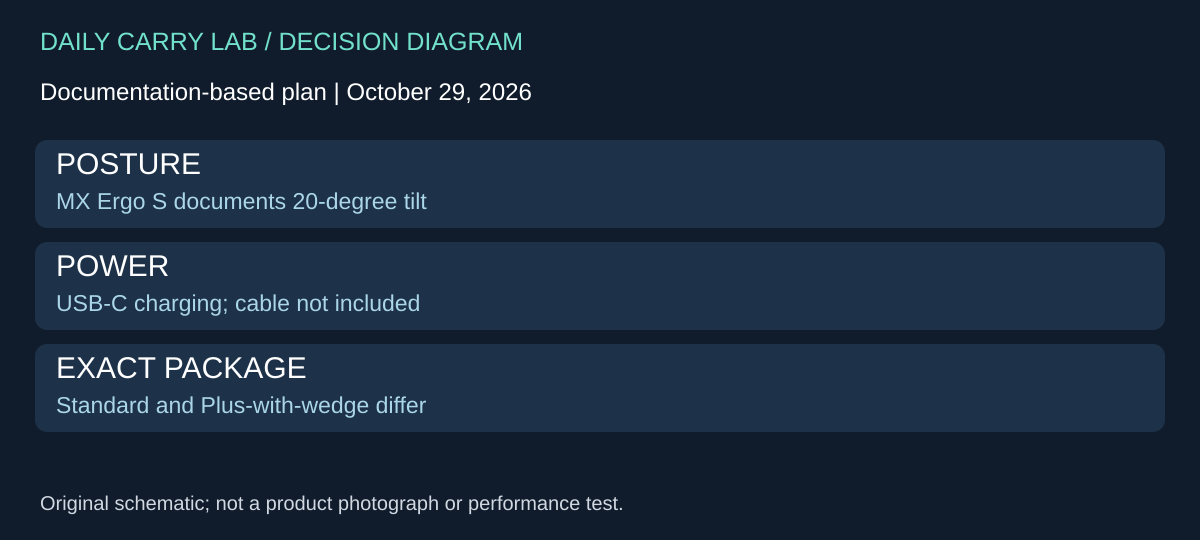
Research added October 29, 2026. Stationary thumb control does not decide the power arrangement or the angle of the device. If the M575S already solves the space problem, identify a specific unmet need before replacing it. An adjustable posture or a preference for rechargeability is a different decision from simply wanting a trackball.
The Logitech MX Ergo S product page documents a 20-degree tilt, six customizable buttons and USB-C charging with the cable excluded. It separately offers standard MX Ergo S and MX Ergo S Plus with an extra wedge. Do not assume a standard unit includes the Plus wedge. We make no quantified strain-reduction or comfort claim from the maker’s ergonomic marketing.
| Buyer decision | Retained M575S | MX Ergo S comparison | Limit to resolve |
|---|---|---|---|
| Power logistics | One replaceable AA | Rechargeable through USB-C; cable excluded | Confirm a suitable cable and a charging opportunity |
| Position adjustment | No adjustable-tilt claim in this guide | Maker documents 20-degree tilt | Personal comfort is untested |
| Extra wedge | Not part of the retained M575S identity | Plus is separately named | Match the offered configuration rather than assuming an accessory |
| Custom actions | Existing M575S host checks apply | Six customizable buttons; maker points to Options+ | Verify exact action and current host permissions |
This comparison was selected to expose tilt, package and power differences. It does not replace the M575S’s exact off-white retailer identity or approve a new MX Ergo S retailer mapping. Neither shared branding nor a charging socket proves receiver interchangeability, wired USB pointer input or the current requirements for every software feature. Obtain those exact-model details before buying for them.
For a practical comparison, write down whether the unmet need is tilt, a specific button action or avoiding disposable cells. If none applies, keeping the current compatible device avoids another purchase and learning period. If tilt matters, seek a demonstration or suitable return opportunity and check hand access beside the actual keyboard. These are reader checks; we have not tried either shape.
Budget and drawback: current standard/Plus, charging cable and delivered totals are unknown. Rechargeability adds a charging plan, while the AA model adds replacement-cell logistics. A tilt specification does not demonstrate health benefit, greater precision or faster work. Do not buy a Plus package solely from an image of an extra wedge; verify the title and included contents. Keep software customization, hardware connection and individual fit as three separate checks.
One trackball for two computers: distinguish Easy-Switch from Flow
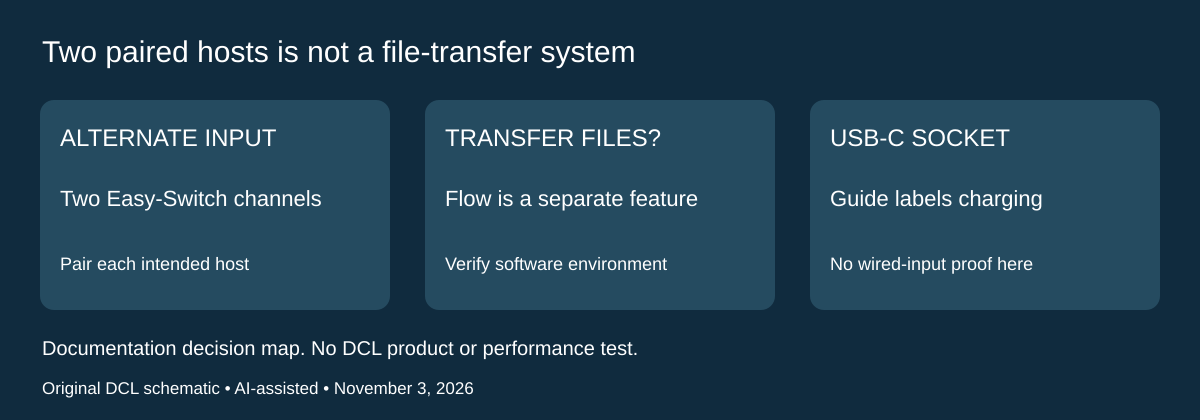
Research addition, November 3, 2026. If you use two computers, the useful question is whether one trackball can control either host after setup. That is separate from copying files or moving continuously between their screens. The MX Ergo S guide, English pages 3–4, checked today, documents two-channel Easy-Switch, allowing switching between two devices without pairing again. It also names Flow for copy/paste between computers; those are separate capabilities.
| Required outcome | Documented MX Ergo S path | What remains to verify |
|---|---|---|
| Choose between two previously paired hosts | Two-channel Easy-Switch | Both intended computers must permit a supported connection |
| Set up Bluetooth on a host | Hold Easy-Switch for three seconds; complete host pairing | A flashing pairing LED does not establish completed pairing |
| Use the Logi Bolt receiver | Connect the receiver to the computer’s USB port | Check exact receiver/port arrangement and workplace policy |
| Copy files or text between computers | Manufacturer separately names Flow | Hardware switching alone does not establish the software/network setup |
The distinction changes the shortlist. A reader who only needs to alternate pointer input can investigate the documented two-channel behavior before buying a second pointing device. A reader who requires cross-computer file movement still needs the supported software environment. The guide’s Flow description does not prove that it works across restricted corporate networks, every host OS or an arbitrary application.
The same manual labels the USB-C socket as a charging port. Its setup section lists Bluetooth and Logi Bolt for connection. Do not purchase it as a verified wired USB pointing device merely because it has that socket. This evidence does not claim cable input is impossible; it establishes that a wired-pointer workflow has not been demonstrated by the cited setup instructions. Keep a permitted input route available during pairing.
Selection and budget: compare the need for two stored host connections with the power, tilt and hand-fit differences above. We do not transfer this two-channel feature to M575S or approve a receiver substitution. Current receiver, adapter and complete-kit costs are unknown. Keep existing compatible input hardware if a second host is not an actual requirement; choose MX Ergo S only after the desired connection and software path are established. DCL has not measured switching time, tested pairing persistence or transferred files with Flow. A documented connection feature is not a comfort or productivity result.
Shop the researched models
These Amazon links are affiliate links. Daily Carry Lab may earn a commission from qualifying purchases. Match the model and included contents to your needs; this guide is based on manufacturer-source research, without hands-on testing.
-
Logitech ERGO M575S
Off-White with Blue Ball 910-007028
Check Logitech ERGO M575S on Amazon
Sources and limits
This guide compares published specifications and source documentation. Daily Carry Lab has not performed hands-on tests of the products in this guide. Consult the dated sources and verify the exact model and current terms before buying.
Related guides
Portable document scanners: choose the feed, power and file workflow
Compare Epson ES-50 and ES-60W simplex workflows with discontinued Brother DS-740D duplex limits, USB power and current software checks.
USB-C Ethernet adapters: match the host, driver and network rate
Compare TP-Link, Plugable and Belkin INC012 Ethernet adapters by host connector, link rate, tether reach and complete kit. Research; throughput untested.
Bluetooth numeric keypads: check layout, host and charging
Compare Satechi ST-XLABKM with the documented Microsoft Number Pad Windows route. Check layout, host support and replaceable battery versus charging.
Compact drawing tablets: active area and current driver checks
Compare One by Wacom Small CTL-472 by drawing area, packed size and dated Windows/Mac driver support. Screenless pen input tradeoffs without testing claims.