By Daily Carry Lab. Primary documentation checked October 13, 2026 (Pacific).
Affiliate disclosure: As an Amazon Associate, Daily Carry Lab earns from qualifying purchases. Retailer links may earn a commission at no extra cost to you. The manufacturer links here are evidence sources.
Research disclosure: This is a primary-documentation guide, not hands-on testing. Specifications and battery figures come from manufacturers. We assign no DCL rating, fit-test result or performance score.
A travel mouse earns its bag space when it solves a real problem: your trackpad is uncomfortable for long work sessions, or you need easier scrolling and switching between machines. Start with the computer’s connection options, then choose the shape and power arrangement. A slim mouse is not automatically comfortable, and a USB-C charging cable does not establish a wired mouse connection.
This guide compares the Pebble Mouse 2 M350s and MX Anywhere 3S because Logitech documents their connection and power requirements. The former is a low-profile, replaceable-battery option; the latter offers rechargeable operation and a different scroll/tracking feature set. We have not tested either on a cafe table or ranked their comfort. We exclude the old article’s unverified generic mice and retailer listings.
Choose the connection before the shape
| Connection question | Pebble Mouse 2 M350s | MX Anywhere 3S |
|---|---|---|
| Bluetooth use | Bluetooth Low Energy | Bluetooth, up to three paired devices |
| Receiver option | Logi Bolt compatible; receiver not included | Logi Bolt compatible; receiver not included |
| Basic host support in cited documentation | Windows 10/11+, macOS 11+, iPadOS 14+, Android 9+, ChromeOS and Linux | Product page lists Windows, macOS, ChromeOS and Linux |
| Optional customization | Logi Options+ on Windows/macOS | Confirm the current Options+ requirements for your computer before buying for app features |
Sources: M350s support specifications and MX Anywhere 3S manufacturer page. Support for basic pointing does not prove every customization feature works on each listed OS. Do not assume a receiver from a different Logitech family will pair; these documents identify Bolt.
On a laptop with few USB ports, Bluetooth avoids occupying a port with a receiver. If Bluetooth use is restricted or unreliable in your actual setup, price the correct receiver and check its physical connector before deciding. Neither cited standalone package includes that receiver. An additional hub changes the packed kit; it is not part of the mouse’s weight or purchase price here.
Compare the power and handling tradeoffs
| Model | Documented useful detail | Reason to compare it | Drawback or open question |
|---|---|---|---|
| Pebble Mouse 2 M350s | 106.7 × 58.7 × 26.62 mm; one user-replaceable AA according to the specification; see the conflicting FAQ below | A flat package and a replaceable cell suit a kit that avoids another charging cable | Low profile is a shape choice, not proof of hand comfort |
| MX Anywhere 3S | USB-C charging; Logitech rates up to 70 days per full charge | Rechargeable operation and MagSpeed scrolling may suit repeated work sessions | Battery figure is conditional; plan charging rather than assuming the quoted duration |
The M350s support table lists 53g without battery/receiver and 76g with an alkaline battery and receiver. Since the receiver is separately sold, we preserve those conditions rather than presenting an unconditional measured carry weight. Logitech rates its non-rechargeable battery life at 24 months; actual use can differ. M350s specification conditions.
Logitech advertises an 8,000-DPI sensor and glass tracking for MX Anywhere 3S. Those are manufacturer claims, not our surface tests. If the table is glossy or inconsistent, a small mouse pad is a practical alternative; verify your actual surface rather than treating a marketing phrase as universal tracking proof. MX Anywhere 3S features.
Make the selection in your real work kit
Check the height of the mouse space in your pouch, whether the power switch is accessible and whether you can comfortably use the shape with your hand. Try the scroll behavior and your main app if you have a return or demo opportunity. These are reader checks; DCL did not perform them. Cafe-work selection is about repeated pointing and scrolling with your computer. The airplane tray-table mouse guide covers that separate space constraint.
If you already carry a suitable mouse, keeping it may be the better first step. Use the travel keyboard guide for typing decisions and the compact USB-C hub guide if a receiver adds a port requirement. Confirm those accessories against your host independently.
Budget without an unsupported ceiling
| Option | Price evidence, October 13, 2026 | Cost to account for | Selection limit |
|---|---|---|---|
| Keep your compatible mouse | No new mouse purchase if already owned | Replacement batteries or needed receiver remain unknown | Keep it only if the actual connection and shape work |
| Pebble Mouse 2 M350s | Current exact US checkout price not established | Exact-unit replacement cell (see conflicting FAQ below) and optional Bolt receiver | Choose for documented connection and flat form, not an assumed cheapest price |
| MX Anywhere 3S | Current exact US checkout price not established | Optional receiver; USB-C charging access | Choose if its documented features solve a recurring work need |
There is no DCL comfort score, measured click-noise result or universal winner. Match connection, shape and battery logistics to your own work before comparing current offers.
Choose Flow only when both computers can support the setup
If you carry a personal laptop beside a work computer, separate Easy-Switch pairing from Logitech Flow before paying for a mouse upgrade. Flow adds automatic movement between computers and copy/paste over the network. It is a software and network arrangement, rather than a feature established merely by pairing a mouse to three hosts.
Logitech’s Flow setup guide, checked October 24, 2026, requires Logi Options+ on the computers, separate paired channels and the same wired or wireless network. Initial discovery also needs an active internet connection. Its Flow product information explicitly lists both MX Anywhere 3S and Pebble Mouse 2 M350s as supported devices. Check the same software and network requirements before choosing either for Flow.
| Requirement | Check before choosing MX Anywhere 3S for Flow | Drawback if unresolved |
|---|---|---|
| Work and personal computers | Permission and ability to install Options+ on both | Basic pointing can work without proving the intended software workflow |
| Automatic cross-computer movement | Both machines on a network that permits discovery | Sharing a cafe’s Wi-Fi name does not prove the computers can communicate |
| Restricted company network | Ask the administrator about the documented communication requirements | Do not change work security settings to make a mouse feature work |
| Occasional local switching | Evaluate the physical Easy-Switch control separately | Automatic cursor transfer may be unnecessary for the task |
Logitech says a computer removed from Flow remains paired, allowing use of the Easy-Switch button. That is a useful fallback to evaluate before buying another receiver or mouse. It does not promise that every disconnected or sleeping host will accept input.
Budget and selection: current mouse, receiver and complete-kit costs are unknown. Buy for Flow only after confirming the actual two-computer arrangement; otherwise compare the existing Bluetooth/Bolt and shape choices above. If your current mouse already switches adequately, keeping it may solve the problem. DCL has not tested cafe-network discovery, file transfer, switching latency or managed-computer compatibility.
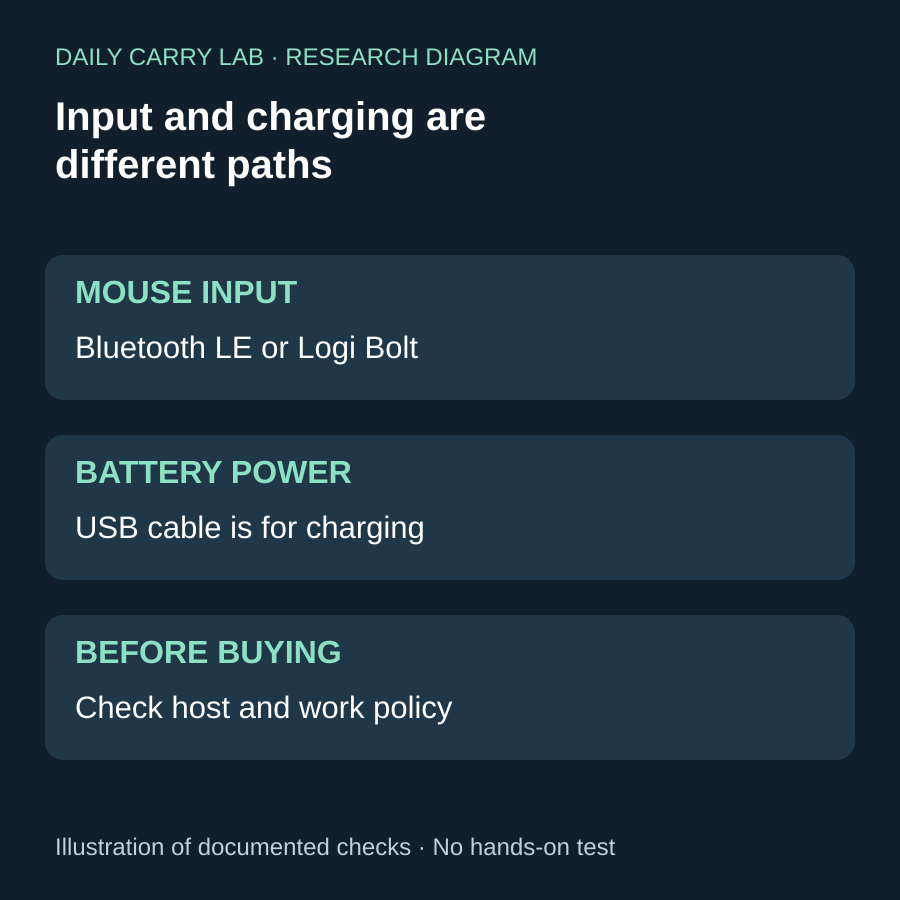
Daily Carry Lab research diagram, October 28, 2026. Original illustration of the documented checks below; no product photograph or hands-on testing.
A charging cable does not solve a wireless-input restriction
Research added October 28, 2026. Before choosing MX Anywhere 3S for a managed laptop, decide how mouse input will reach that computer. Logitech’s exact-model support specification identifies the mouse as wireless and lists Bluetooth Low Energy and Logi Bolt. The listed USB cable is a charging accessory; the table does not document wired USB mouse input.
| Work-computer constraint | Documentation to match | Decision |
|---|---|---|
| Bluetooth is permitted | Exact host and Bluetooth requirements | Confirm the operating system before purchase |
| Bluetooth is prohibited, receiver permitted | Bolt connection and available USB port | Check administrator permission and receiver package separately |
| All wireless input is prohibited | A mouse explicitly documenting wired input | Do not select this model merely because it has USB-C |
| Laptop has only USB-C ports | Connector on the chosen receiver and charging cable | Include any necessary adapter in the complete kit |
The support table labels its operating-system requirements at release. It lists Bluetooth support from Windows 10, macOS 10.15, iPadOS 13.4 and Android 9, alongside ChromeOS and Linux. These are basic connection statements, not proof of every current Options+ feature or company policy. The receiver list differs from the Bluetooth list; do not use one as blanket evidence for the other.
Logitech also distinguishes the charging leads: USB-A to USB-C for MX Anywhere 3S, USB-C to USB-C for the Mac version. Check the exact regional package rather than ordering a second cable from the name alone. Existing receiver exclusions in the comparison above remain.
Budget and drawback: current mouse, receiver, adapter and delivered totals are unknown. A permitted wireless setup can suit travel; a wired-only requirement calls for another documented model. DCL has not tested managed-host access, connection reliability or either bundle.
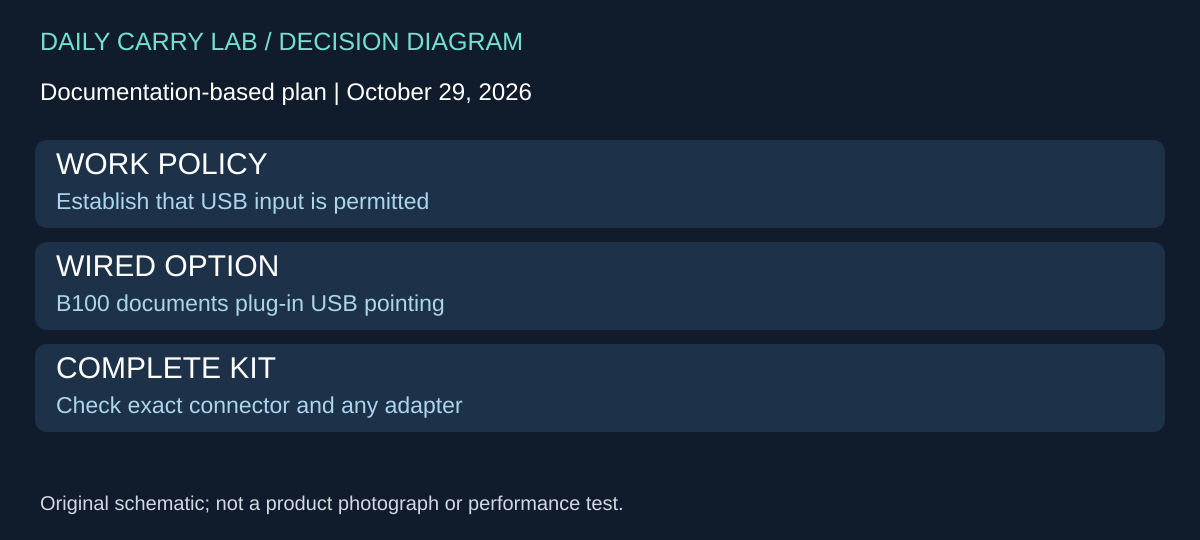
A documented wired alternative for a wireless-restricted computer
Research added October 29, 2026. The wireless comparison above identifies a boundary: charging an MX Anywhere 3S by USB does not establish wired pointer input. If the computer permits USB input but prohibits wireless devices, change the type of connection you are shopping for before comparing battery life or receivers.
Logitech’s B100 Optical USB Mouse business page, black 910-001439 documents a plug-in USB mouse. It describes full-size ambidextrous construction, line-by-line scrolling and support for Windows, macOS and Linux, with Works With Chromebook certification. These are manufacturer statements; we have not tested the device or the employer’s host configuration.
| Requirement | B100 decision | Difference from the retained wireless options |
|---|---|---|
| Wired USB input is permitted | Check this documented USB route with the administrator | No Bluetooth or Bolt pairing is the intended input path |
| Left- or right-hand use | Maker describes ambidextrous construction | Shape and comfort still need an individual check |
| Ordinary document scrolling | Line-by-line scrolling is documented | Do not assume MX Anywhere’s wheel feature set |
| Restricted host | Verify permitted USB hardware and exact host | Listed OS support does not grant organizational approval |
We selected B100 for the different connection decision, not because it has a demonstrated comfort or reliability advantage. A larger wired mouse may also be less convenient to pack than a flat wireless model. We have not established packed dimensions or a cable-length advantage here, so leave those as checks against the selected package rather than copying values from another mouse.
Before ordering, identify the computer port and the physical connector on the exact offered unit. If the laptop has only USB-C, establish the complete adapter path and its permission separately. Avoid buying a receiver to solve a restriction that excludes wireless input altogether. Conversely, if the present Bluetooth mouse is permitted and works, a wired purchase may add a cable without solving a real problem.
Budget and drawback: the mouse, any adapter and delivered total remain unknown. No new retailer listing is approved. Use a mouse or trackpad already available to check whether ordinary USB input is allowed before selecting additional features. DCL makes no click-noise, comfort, tracking or productivity claim, and does not promise a customization application or a particular shortcut. Keep the existing Flow discussion limited to the models and software documented there; this wired alternative gains no Flow capability by appearing in the same guide.
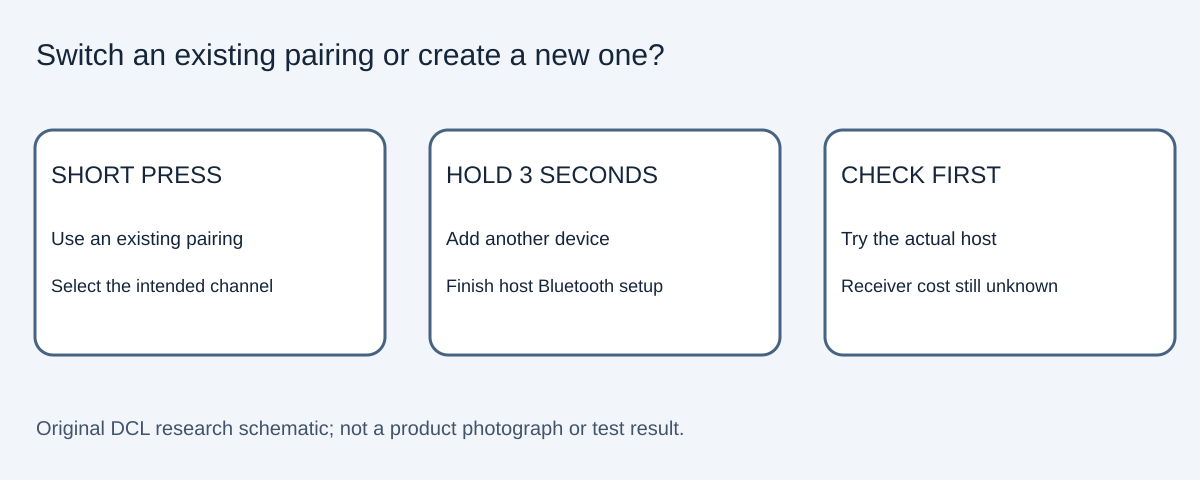
Distinguish switching from pairing before buying a receiver
For an existing Pebble Mouse 2 M350s, first establish whether the second computer is already paired. Logitech’s M350s setup guide, checked October 30, 2026, documents up to three devices. A short Easy-Switch press changes between paired devices; adding one requires selecting a channel, holding the button for three seconds and completing Bluetooth setup on that host.
| Your task | Documented control | Purchase implication |
|---|---|---|
| Return to an already paired computer | Short Easy-Switch press | A second receiver may be unnecessary |
| Add a different computer | Hold on the selected channel; finish Bluetooth pairing | Switching alone does not establish a pairing |
| Reconnect a disconnected device | Hold until rapid blinking, then select the mouse in host Bluetooth settings | Logitech gives a three-minute pairing window |
This physical control offers a different workflow from automatic Flow movement. Rehearse on the actual permitted host before ordering accessories. We have not measured switching delay or connection reliability, and these M350s instructions do not certify another mouse. Receiver and complete-kit prices remain unknown; keeping a working pairing may avoid an unnecessary purchase.
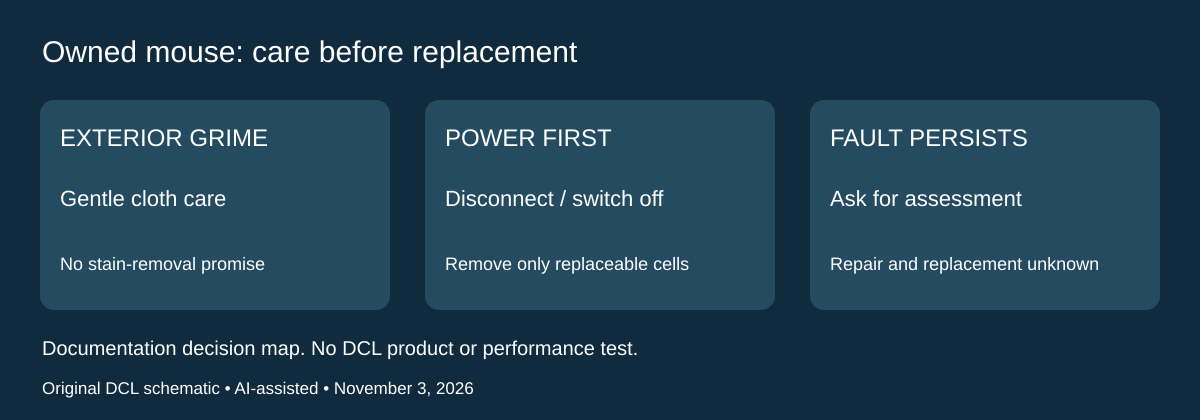
Clean an owned Logitech mouse before replacing it for surface grime
Research checked November 3, 2026. If the Pebble Mouse 2 M350s or MX Anywhere 3S still performs its intended job but looks dirty after travel, separate surface care from a hardware fault before buying another mouse. Logitech publishes device-care instructions with a mice and presentation-device section. This is general Logitech care guidance, not an exact-model stain-removal guarantee.
Before cleaning, unplug a connected cable, remove a user-replaceable battery where applicable, switch off and wait 5–10 seconds. Lightly dampen a soft, lint-free cloth with tap water and wipe the exterior. Apply moisture to the cloth rather than spraying the mouse; prevent liquid entering openings and do not immerse it. The page warns against bleach, acetone, strong solvents and abrasive products. These instructions provide an exterior-care route; they do not authorize opening a sealed mouse or washing its internal electronics.
| Owned-mouse situation | First decision | Remaining limitation |
|---|---|---|
| Exterior grime, normal input | Evaluate the documented gentle exterior cleaning | No promised removal of discoloration or worn coating |
| Pebble needs cleaning | Its user-replaceable AA can be removed first | This does not imply MX Anywhere has the same battery access |
| Clicks or tracking remain faulty | Ask support to assess the input problem | Surface care does not diagnose a switch or sensor |
| Considering a different color | Decide whether appearance alone warrants another purchase | No DCL long-term stain or material comparison |
The retained exact-model comparison establishes Pebble’s replaceable AA and MX Anywhere’s rechargeable arrangement. Apply the care page’s battery-removal instruction only where the battery is user-replaceable. We have deliberately selected the gentle water-and-cloth path here; the page also discusses other cleaners, but that does not establish that a particular chemical is appropriate for your mouse’s finish.
Budget and drawback: an owned suitable cloth may require no new purchase; cleaning-product, repair and replacement totals are unknown. Our recommendation is to assess an otherwise useful mouse before spending on its replacement. If cleaning does not resolve the concern, describe the symptom to Logitech rather than treating stronger chemicals as the next automatic step. We have not cleaned these models, tested disinfectant effectiveness or measured a change in tracking. The existing connection, receiver and work-policy limits remain part of the selection.
M350s: resolve conflicting battery instructions before buying spares
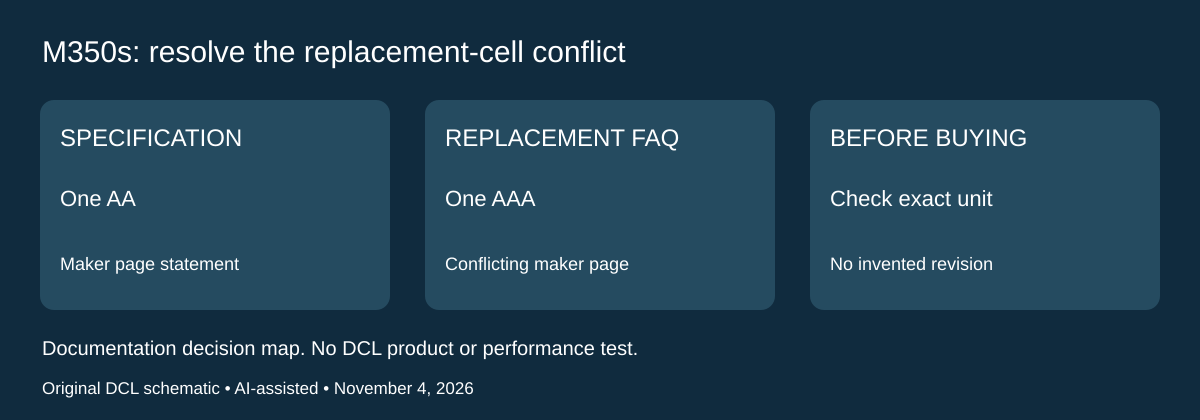
Research checked November 4, 2026. Two Logitech pages currently disagree about the Pebble Mouse 2 M350s replacement cell. The exact-model specification says one AA; the battery replacement FAQ says one AAA. We cannot resolve that discrepancy from those pages alone and do not treat it as proof of a new hardware revision. The earlier AA entries are now explicitly attributed to the specification rather than presented as an unconditional replacement instruction.
| Your decision | Evidence to use | What remains unresolved |
|---|---|---|
| Replace the cell in an owned mouse | Follow the exact unit’s compartment marking and supplied instructions; ask Logitech if inconsistent | Which page explains the disagreement |
| Buy a travel spare before the mouse arrives | Confirm the exact package and cell requirement with the maker or seller | A page title alone does not settle the conflict |
| Choose rechargeable versus replaceable power | M350s is documented as non-rechargeable with a user-replaceable cell | Neither conflicting size statement establishes rechargeable operation |
| Compare advertised life | Both pages give a 24-month figure, qualified by use/conditions | No DCL test or guaranteed travel duration |
Our recommendation is to postpone a cell purchase that depends on the disputed detail. For an owned unit, inspect its markings before fitting a replacement and follow the exact supplied instructions. Do not force a cell or improvise a spacer to make one size fit another. A photograph of another person’s mouse or a different Pebble generation would not resolve the identity of yours.
This conflict affects the complete-kit comparison. A traveller consolidating battery types needs the actual requirement, not an attractive life claim. It can be worth keeping a working mouse until the replacement arrangement is clear. A rechargeable alternative has its own tradeoff: dependable charging access and a suitable cable. Neither choice is automatically cheaper or more convenient for every trip.
Budget and drawback: spare-cell and complete mouse-kit totals are unknown. No seller package or stock revision is verified here, and no new buying link is introduced. The connection, Flow and wired-alternative sections above remain separate: a battery-size disagreement does not change the documented host or receiver requirements. DCL has not opened or powered either mouse, measured life or established a product defect. This is an explicit documentation uncertainty to settle before spending.
Sources and limits
This guide compares published specifications and source documentation. Daily Carry Lab has not performed hands-on tests of the products in this guide. Consult the dated sources and verify the exact model and current terms before buying.
- Specification - Pebble Mouse 2 M350s – Logitech Support + Download
- Buy MX Anywhere 3S Wireless Bluetooth Mouse | Logitech
- Choose Flow only when both computers can support the setup primary documentation
- Choose Flow only when both computers can support the setup primary documentation
- October 28 mouse decision evidence
- October 29 mouse-b100 primary documentation
- October 30 decision update primary documentation
- Before You Clean; Cleaning Mice or Presentation Devices
- M350s specification: Battery Details / Battery user replaceable / Battery life
- M350s replacement FAQ: Battery replacement; conflicting AAA wording
Related guides
Portable document scanners: choose the feed, power and file workflow
Compare Epson ES-50 and ES-60W simplex workflows with discontinued Brother DS-740D duplex limits, USB power and current software checks.
USB-C Ethernet adapters: match the host, driver and network rate
Compare TP-Link, Plugable and Belkin INC012 Ethernet adapters by host connector, link rate, tether reach and complete kit. Research; throughput untested.
Bluetooth numeric keypads: check layout, host and charging
Compare Satechi ST-XLABKM with the documented Microsoft Number Pad Windows route. Check layout, host support and replaceable battery versus charging.
Compact drawing tablets: active area and current driver checks
Compare One by Wacom Small CTL-472 by drawing area, packed size and dated Windows/Mac driver support. Screenless pen input tradeoffs without testing claims.