By Daily Carry Lab. Manufacturer research checked October 13, 2026 (Pacific).
Affiliate disclosure: As an Amazon Associate, Daily Carry Lab earns from qualifying purchases. Retailer links may earn a commission at no extra cost to you. Manufacturer links here document sources.
Research disclosure: This guide uses manufacturer documentation, not hands-on testing. Specifications are advertised limits; no DCL rating or benchmark is assigned.
A Thunderbolt dock is worth considering when you need a documented Thunderbolt connection for downstream devices. Start with the laptop’s exact port specification, then map your displays and storage. A familiar USB-C connector alone does not establish that transport.
We selected the CalDigit Thunderbolt Station 4 (TS4) as one documented example, rather than ranking a mixed list of USB-C and DisplayLink products. This is a compatibility decision guide, not an exhaustive shortlist. No current US budget band has been established; the existing URL’s old under-$200 phrase is not a promise in this revision.
Establish the transport first
CalDigit identifies TS4 as a Thunderbolt 4 dock and states that its Thunderbolt 3/4 products are Windows Thunderbolt certified. That is manufacturer certification evidence, not DCL certification testing. CalDigit Windows support statement.
Write down your computer model, port protocol and OS version. For a downstream Thunderbolt device, check its own host requirements before choosing a dock. CalDigit documents TS4 compatibility with Thunderbolt 3/4, USB4 and USB-C hosts, with functions dependent on the host. USB-C fallback is not evidence that a USB-only computer acquires every Thunderbolt function. TS4 host documentation.
| Connection to verify | TS4 documented boundary | Buying consequence |
|---|---|---|
| Computer uplink | One of three Thunderbolt 4 ports is the host connection | Leave this port for the computer; it is not a third spare device port |
| Downstream transport | Two spare Thunderbolt 4/USB4 ports; advertised up to 40Gb/s | Plan which ports displays and storage will occupy |
| Ordinary USB accessories | Separate USB-A and USB-C data connections | Their connector shape does not make them display outputs |
Source: TS4 interface documentation. The rate describes an interface limit. It is not our measured SSD throughput, and attaching several devices does not establish an independent full-rate connection for each.
Sketch the downstream chain
Draw one line from the computer to the dock, then one for each attached device. If a monitor occupies a spare Thunderbolt port, mark that port used. A second device can only connect through a monitor or another device when that device’s exact documentation establishes an appropriate downstream connection. Do not assume a screen’s charging USB-C input is a spare output for storage.
CalDigit’s manual shows dual-display arrangements using DisplayPort plus a spare Thunderbolt port, two spare Thunderbolt ports with video adapters, or two directly connected compatible monitors. It also requires active adapters for conversions from the dock’s DisplayPort connector. Adapter costs and the occupied connections belong in your plan. TS4 manual, display setup.
| Host situation | Check before buying | Limit to preserve |
|---|---|---|
| Two external displays | Exact host’s native display count and dock connection diagram | Two connectors alone do not establish two independent desktops |
| Original M1 Mac | Model-specific display support | TS4 manual limits this host to one external display |
| Higher resolution or refresh | GPU, display, cable and adapter support | Manual identifies DP/HBR3/DSC dependencies; no universal high-refresh guarantee |
The manual and current product page contain different historical high-resolution wording. We do not turn their headline maximums into a guaranteed mode. Confirm the exact host/display chain with the manufacturer before purchasing for an unusual resolution or refresh rate. This also avoids treating older M1 guidance as a rule for every later Mac.
Separate host charging from accessory power
| TS4 connection | Manufacturer rated output |
|---|---|
| Host port | Up to 98W; 20V/4.9A maximum listed profile |
| Each downstream Thunderbolt port | 15W |
| Front high-power USB-C port | 20W |
| Other USB-C and USB-A ports | 7.5W per listed port |
CalDigit power profiles. These are rated limits, not a DCL simultaneous-load test. The product page states that the included supply maintains host charging when accessories are connected. Actual laptop power negotiation and workload remain relevant; 98W is not a promise to satisfy every laptop’s peak demand.
Budget and drawbacks
| Choice | Budget evidence | Reason to consider | Drawback |
|---|---|---|---|
| TS4 documented configuration | Current US price not retained; include any required video adapters | Downstream Thunderbolt device plan and stated host charging | Desktop supply and occupied display ports add to the kit |
| A USB-C dock | Exact model and price require separate selection | Host needs ordinary USB and documented video expansion | Cannot substitute for required Thunderbolt transport |
| A compact hub | Exact model and price require separate selection | A small portable port kit | Port and power requirements may exceed a simple hub |
Choose the smallest configuration that meets the written device plan. We have not tested wake behavior, heat, throughput or reliability. For the separate DP Alt Mode display decision, use the USB-C dock guide. For a portable kit, use the compact hub guide. The USB-C cable guide explains why charging ratings alone do not establish data or video support.
TS5: verify the host fallback before replacing a TS4
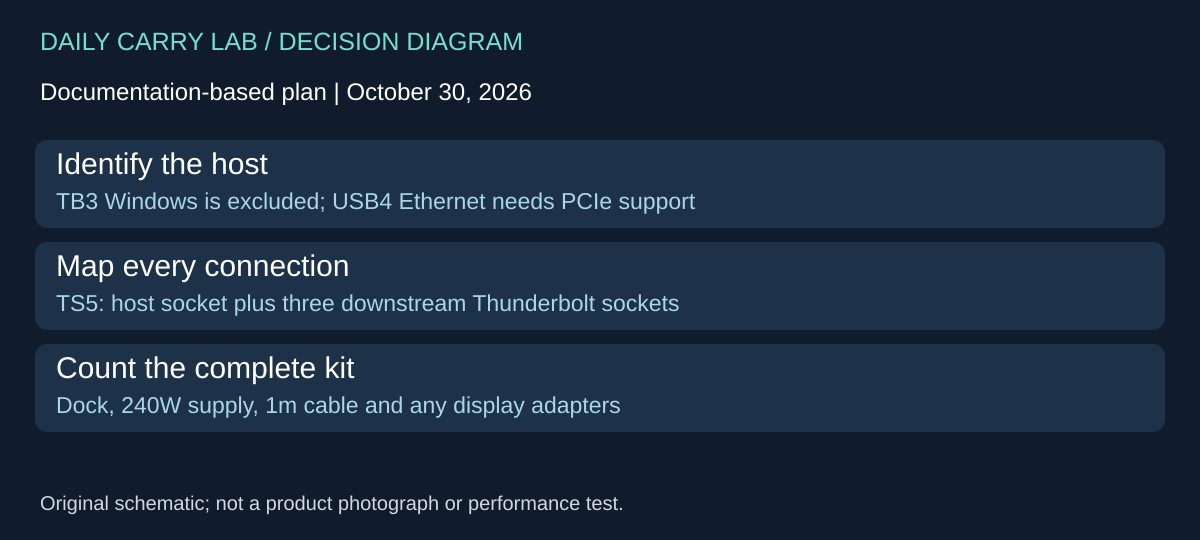
The CalDigit TS5, distinct from TS5 Plus, adds a newer candidate to this guide. Its product documentation and TS5 manual, checked October 30, 2026, make the host decision more specific than buying by a Thunderbolt generation number. A USB-C plug fitting the dock does not establish that every onboard function works.
| TS5 requirement | Documented boundary | Buying consequence |
|---|---|---|
| Windows Thunderbolt host | Thunderbolt 3 Windows PCs are excluded in the manual | Do not assume the TS4’s compatibility transfers |
| Onboard Ethernet | Thunderbolt host or USB4 host with PCIe support | Confirm the exact computer’s PCIe tunneling before relying on wired networking |
| Display connections | Three downstream Thunderbolt 5 sockets; separate host socket | Direct suitable USB-C/Thunderbolt displays or budget for appropriate adapters |
| Charging | Up to 140W to host; 15W at each downstream Thunderbolt port | Host and accessory ratings serve different connections |
The interface list and manual identify three downstream sockets, while a product FAQ says “two.” We use the agreeing interface/manual evidence and retain that discrepancy rather than copying the FAQ count. The TS5 has no dedicated DisplayPort connector in that interface list; a TS4 DisplayPort cable plan therefore needs reconsideration. Do not apply the Plus model’s port layout.
For an upgrade, write a two-column inventory: what already works on TS4 and what the new arrangement must change. List the host model and OS, each monitor’s connector, required network connection and any storage device. Check the exact current host requirements on the manufacturer page, especially when compatibility is close. A port-count comparison alone cannot choose a dock.
| Keep or change | Complete-kit budget | Drawback to consider |
|---|---|---|
| Keep a working TS4 | No replacement purchase if owned | Does not add the TS5’s documented host-power ceiling |
| Investigate TS5 | Exact dock configuration, display adapters and any missing cables; delivered total unknown | Included 240W supply and power cord add to the travel kit |
| Need a portable port adapter | Compare the compact-hub guide linked above | A desktop dock’s extra connections may be unnecessary |
The TS5 listing includes a 1m Thunderbolt 5 cable and a 240W supply. Check the actual offered package before purchasing; no retailer identity is approved by this addition. These are separate supply and host-output ratings, not a promise of 240W laptop charging. We have not measured charging under load, network throughput, display behavior or reliability. Choose TS5 for a documented requirement your complete connection plan satisfies, not as an automatic improvement to every TS4 setup.
Sources and limits
This guide compares published specifications and source documentation. Daily Carry Lab has not performed hands-on tests of the products in this guide. Consult the dated sources and verify the exact model and current terms before buying.
Related guides
Portable document scanners: choose the feed, power and file workflow
Compare Epson ES-50 and ES-60W simplex workflows with discontinued Brother DS-740D duplex limits, USB power and current software checks.
USB-C Ethernet adapters: match the host, driver and network rate
Compare TP-Link, Plugable and Belkin INC012 Ethernet adapters by host connector, link rate, tether reach and complete kit. Research; throughput untested.
Bluetooth numeric keypads: check layout, host and charging
Compare Satechi ST-XLABKM with the documented Microsoft Number Pad Windows route. Check layout, host support and replaceable battery versus charging.
Compact drawing tablets: active area and current driver checks
Compare One by Wacom Small CTL-472 by drawing area, packed size and dated Windows/Mac driver support. Screenless pen input tradeoffs without testing claims.