
By Daily Carry Lab. Primary documentation checked October 14, 2026 (Pacific).
Affiliate disclosure: As an Amazon Associate, Daily Carry Lab earns from qualifying purchases. Retailer links may earn a commission at no extra cost to you. Manufacturer links support the documented claims.
Research disclosure: We have not tested these products. Selection is based on primary documentation and the compatibility decisions below; no DCL ratings or measured performance are claimed.
A cellular hotspot creates an internet connection from a mobile network and shares it with your devices. A travel router instead re-shares an existing Wi-Fi or Ethernet connection. If you mainly want to connect through hotel internet, read the travel-router guide. This guide covers choosing the cellular radio, plan and regional hardware when an existing uplink is unavailable.
The documented candidates here are NETGEAR Nighthawk M6 MR6150-100NAS, a North American unlocked 5G model, and GlocalMe UPP, a 4G device with a CloudSIM service workflow. We selected them to explain the difference between buying a carrier-plan radio and using a provider-managed travel-data service. Neither is a speed-test winner, a guarantee of coverage or a claim to be the newest hotspot.
An unlocked label is only the first check
NETGEAR’s current M6 page advertises compatibility with AT&T, T-Mobile and Verizon. Its regional specification table lists MR6150-100NAS as North American/unlocked, with AT&T and T-Mobile under carrier certification and “N/A” under international roaming. Treat that difference as a reason to confirm the exact SKU and IMEI with your selected carrier; neither an unlocked label nor a retailer title establishes an international itinerary’s compatibility. M6 product page, NETGEAR regional specification table.
MR6150 hardware sold with a different regional suffix has a different documented band list. Do not apply the European MR6150 specification to the verified -100NAS listing here. Ask the operator about the exact device, hotspot plan eligibility, roaming, APN setup and tethering allowance before purchasing a plan.
GlocalMe’s UPP product page describes getting the device, creating a GlocalMe account, linking it in the app and buying a data package. “SIM-free” service does not mean internet is free, and a coverage-country count does not establish a working connection at your hotel or campsite. Check the destination, package duration, data allowance and any speed restrictions in the actual plan. GlocalMe UPP service workflow.
Compare cellular bands, not the Wi-Fi label
| Exact hardware | Documented cellular radio | Band check |
|---|---|---|
| M6 MR6150-100NAS | Sub-6 GHz 5G and LTE Cat 19 | 5G: 2, 5, 12, 14, 25, 29, 30, 41, 48, 66, 71, 77. LTE: 1, 2, 3, 4, 5, 7, 12, 13, 14, 25, 26, 29, 30, 41, 46, 48, 66, 71 |
| UPP | 4G LTE, not a verified 5G radio | FDD-LTE: 1, 2, 3, 4, 5, 7, 8, 12, 13, 17, 18, 20, 25, 26, 28, 66. TDD-LTE: 34, 38, 39, 40, 41, as printed in the product table |
Sources: NETGEAR exact regional table, GlocalMe UPP product table.
Compare that exact list with the destination operator’s required bands and device-acceptance policy. Overlapping one band does not establish full service, aggregation, coverage or roaming. A hotspot’s Wi-Fi connection to your laptop is a separate link; Wi-Fi 6 cannot add a missing cellular band. Nor does a brand’s website navigation offering 5G plans turn UPP into a 5G device.
Physical SIM, CloudSIM and eSIM are different paths
NETGEAR’s manual requires a valid activated nano-SIM with a provider data plan. This guide has not established installation of an arbitrary travel eSIM profile on this M6 SKU. A phone-oriented eSIM offer should not be purchased for it solely because both devices use mobile data. M6 manual, SIM installation.
UPP’s CloudSIM workflow uses GlocalMe’s account and service. That is not evidence that the device accepts any carrier’s downloadable eSIM QR code. GlocalMe also mentions a physical SIM slot, but the captured product page is inconsistent: its summary says nano-SIM while its detailed table says micro-SIM. Confirm the exact revision and slot size with GlocalMe before planning a physical-SIM workflow; we do not resolve that conflict by guessing. UPP specifications.
| Connection plan | What must be verified | Drawback |
|---|---|---|
| M6 with a carrier SIM | Exact -100NAS SKU/IMEI, activated nano-SIM and approved data plan | Regional radio and operator approval constrain use |
| UPP with GlocalMe data | Account, linked device and destination package terms | Ongoing provider/package dependency |
| UPP with your physical SIM | Slot size/revision, network acceptance and setup | Manufacturer slot-size conflict remains unresolved |
| A travel eSIM offer | Explicit installation support on the exact hotspot | Phone eSIM compatibility is insufficient evidence |
Plan SIM recovery before relying on the M6 away from home
If an M6 is your only uplink, check who can unlock its SIM after a restart. The June 2024 M6/M6 Pro manual, printed page 67, checked October 27, 2026, includes MR6150 and documents an optional SIM-security PIN that, when enabled, is required whenever the hotspot powers on. It separately documents the web-interface login password. Changing one is not the documented procedure for the other.
| What stops the workflow | What to establish | Buying or travel consequence |
|---|---|---|
| SIM PIN required after power-on | Authorized access to the correct SIM credential | A charged hotspot and active allowance may still be insufficient |
| SIM blocked after wrong entries | Obtain the PUK from the cellular data provider | Another router is not a documented substitute for carrier recovery |
| Web-interface login unavailable | Use the separate administration-password support path | Do not enter unrelated passwords into the SIM prompt |
| Traveling without another connection | A way to reach the provider if the hotspot cannot connect | Include recovery access in the plan comparison |
NETGEAR warns that three incorrect PIN entries block the SIM. Stop guessing and contact the provider when recovery is needed. This is a reason to prepare access before departure, not a recommendation to change security settings during a trip.
Current service and replacement costs remain unknown. We have not tested unlocking, recovery time or every carrier’s procedure. These instructions apply to the documented M6 family, not the UPP CloudSIM account. A larger data package does not itself resolve a credential problem.
Device count is a sharing ceiling, not performance
NETGEAR documents up to 32 concurrent devices for M6. GlocalMe lists up to eight for UPP, whose local Wi-Fi table specifies 2.4 GHz 802.11 b/g/n. Both counts are connection limits, not a promise that every connected device can stream at full speed. The cellular connection and plan remain shared. M6 product page, UPP product specifications.
NETGEAR rates M6 at up to 13 hours per charge; actual conditions matter. Its manual documents battery charging through USB-C and precautions for use. UPP lists 3000 mAh and a Type-C cable, but a comparable primary-source runtime test is not established here. Battery capacities or nominal network speeds cannot produce a credible head-to-head endurance estimate. M6 manual.
Before leaving reliable internet, activate the chosen service, connect your actual laptop and verify the tasks you need. Confirm a second way to get essential information if service fails. This is a suggested travel check, not a measured availability or security guarantee.
| Exact option | Budget status checked October 14, 2026 | Useful fit | Drawback |
|---|---|---|---|
| NETGEAR M6 MR6150-100NAS black | Hardware checkout total unknown; separate carrier-plan costs unknown | North American carrier-SIM workflow, after exact operator acceptance | No universal international roaming compatibility established |
| GlocalMe UPP blue, U20 retailer identity | Hardware checkout total unknown; chosen data-package costs unknown | Provider-managed CloudSIM workflow after destination/plan checks | 4G device; physical-slot size conflict needs confirmation |
| Keep a suitable phone hotspot | No separate hardware purchase if your phone/plan supports the task | Confirm plan allowance and battery use first | Phone compatibility and allowance still need checking |
Retailer identities checked October 14: B0BGV79FHT for MR6150-100NAS and B09Y8KV8NF for UPP Blue/U20. No promotional data allowance is promised by this guide. Recheck the selected hardware variant and actual service terms at checkout; choosing a hotspot commits you to a connectivity workflow, not just another travel gadget.
Before buying a separate hotel router, check M6 offloading
An M6 owner may not need a second device solely to re-share an available hotel connection. The NETGEAR M6/M6 Pro manual, printed page 34, checked October 22, includes MR6150 in its model coverage and documents two offloading paths. Wi-Fi offloading uses a local Wi-Fi internet connection instead of cellular data; Ethernet offloading uses a local wired internet connection. This adds a useful reuse question to the carrier/SKU choice above.
The documented touchscreen route is to wake and unlock the hotspot, open Internet, and select WiFi + Cellular or Ethernet + Cellular, then follow the displayed instructions. The manual also describes Ethernet/cellular switching when an outage occurs. Those combined-mode labels matter: do not treat offloading as proof that cellular use has been disabled or that your next bill must be zero. Check the active connection and the carrier’s actual allowance before depending on it.
| Travel situation | What to resolve on the existing M6 | Purchase consequence |
|---|---|---|
| Hotel supplies usable Wi-Fi | Whether that network permits the intended connection and the documented offload path works | A separate router purchase may be avoidable for this specific sharing job |
| Room supplies Ethernet | Access permission, working uplink and appropriate Ethernet cable | Include the cable and physical placement in the kit, not just the hotspot body |
| Primary uplink fails | Whether cellular fallback is acceptable under the selected plan | Retaining a data plan can still matter even when you usually offload |
| You require operation with cellular strictly absent | An explicitly verified configuration meeting that requirement | The combined menu labels alone are insufficient evidence |
This is distinct from USB tethering a computer or using your phone as the upstream modem. The named menu selects an internet uplink for the M6; a USB cable being present does not prove that path is configured. Likewise, a hotel sign-in page, a captive portal or a managed network may add requirements that this manual’s general sequence does not settle. Obtain permission and verify the actual network rather than promising universal hotel access.
Our selection rule is to check the existing hotspot’s documented offload capability before adding a second radio, adapter and power task to the bag. The hardware, cable and service totals remain unknown; there is no measured saving, speed gain, security audit or uptime claim. Do not transfer this M6 workflow to GlocalMe UPP, whose CloudSIM service and separate documentation still govern that choice. If the M6 cannot meet the actual uplink or policy requirements, compare a dedicated travel router for those specific missing functions rather than buying by Wi-Fi generation alone.
Set the data counter around your plan before sharing the connection
If several devices will share a metered M6 plan, review usage settings before comparing a larger data package or another hotspot. NETGEAR’s June 2024 M6/M6 Pro manual, printed pages 28–29 and 71, rechecked October 24, 2026, includes MR6150. It documents viewing usage on the touchscreen and configuring the counter through the web interface.
On the touchscreen, wake and unlock the device, then open Data Usage. NETGEAR says Reset returns that counter to zero. In the web interface, Settings, Advanced, Data Usage offers a regular reset date and data-plan limit as well as manual reset. Those are local configuration controls: this passage does not establish a renewal of purchased data, an extension of plan expiry or a carrier billing adjustment.
| Planning question | What to establish | Consequence if unresolved |
|---|---|---|
| When does the actual plan renew? | Obtain the date from the operator | A locally chosen reset date may track a different period |
| How much is available? | Compare operator allowance with the local configuration | Entering a larger limit does not buy more data |
| Why did the displayed total fall? | Check whether the counter was reset | A zero display alone does not prove unused allowance |
| Will a limit stop paid usage? | Obtain explicit current documentation for that behavior | This manual passage does not promise a billing cap |
Our advice is to record the current reading and billing period before changing a reset setting. Compare subsequent readings with the operator’s own account view. If they disagree, ask the operator which allowance and billing rules apply; we have not measured meter accuracy, reporting delays or automatic cutoff behavior.
Budget and drawback: include the chosen plan, expiry and any applicable overage terms in the kit decision. Current package totals are unknown. An existing hotspot’s usage screen may help you plan sharing, but cannot establish that a particular plan is sufficient. These M6 controls do not document the UPP CloudSIM app’s behavior, and they do not resolve the regional/SIM compatibility checks above.
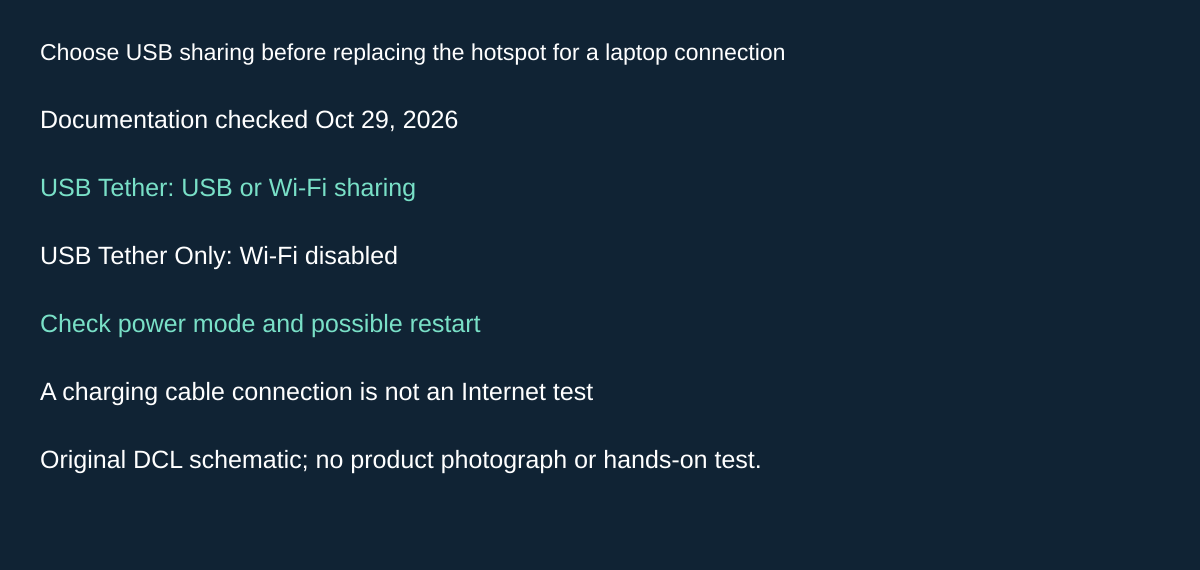
Original DCL research schematic, October 29, 2026; documented boundaries, not a product photograph or test.
Choose USB sharing before replacing the hotspot for a laptop connection
A laptop that needs a wired connection does not automatically require another travel router. NETGEAR’s reviewed M6/M6 Pro family manual includes MR6150 and documents USB tethering to a computer. Its USB Tether Only option disables Wi-Fi, while USB Tether allows Wi-Fi or USB access. Check the exact unit, firmware and available menu before relying on either arrangement. June 2024 manual, printed page 53, checked October 29, 2026.
| Intended connection | Documented setting or dependency | Drawback to resolve |
|---|---|---|
| One laptop over USB | USB tethering enabled and a working computer data connection | A charging indication alone does not prove Internet access |
| USB laptop plus Wi-Fi devices | USB Tether option | Verify the other devices actually remain connected |
| Deliberately restrict sharing to USB | USB Tether Only disables Wi-Fi | A companion’s Wi-Fi device loses that access path |
| Change power mode or tether setting | Manual warns the current state can depend on power mode; restart may be needed | Configure before an important call |
This is a downstream connection choice between the hotspot and computer. It does not replace the SIM, operator, APN or plan checks above, and does not make cellular service available where the selected plan has no coverage. Nor does a USB-only arrangement establish a VPN or a complete security configuration.
For a packing decision, check the laptop’s permitted networking configuration and usable data ports before ordering another adapter or router. Then rehearse the intended USB connection and, if needed, a second Wi-Fi device. Keep the phone’s own hotspot as a separate comparison with its own plan and power requirements. We have not tested throughput, host drivers, battery use or reconnection behavior.
Budget: current data-capable cable, adapter and service totals are unknown. The useful saving may be avoiding a redundant box, but only after the existing connection works. These NETGEAR settings do not document GlocalMe UPP behavior or authorize a different regional MR6150 specification.
Choose an antenna only after checking the reception problem
Before replacing the M6 or adding an antenna to every travel kit, check whether weak cellular reception is the actual constraint. The June 2024 M6/M6 Pro family manual, printed pages 81–82, checked October 31, 2026, includes MR6150 and describes external-antenna use. It says an antenna can help below two reception bars, while above two bars interference may reduce reception. It does not settle the exactly-two-bar case.
| Observed situation | Purchase check | Unresolved limit |
|---|---|---|
| Fewer than two bars | Investigate the documented external-antenna path and placement | No promised throughput increase |
| More than two bars | Check other causes before adding an antenna | Manual warns reception can decrease |
| Shopping for an antenna kit | Verify both connectors and included adapters | No exact retailer package approved here |
The manual describes two TS-9 connectors and a NETGEAR omnidirectional MIMO arrangement with SMA-to-TS-9 adapters. It cautions that TS-9 connectors can be delicate. Placement and aiming matter; its advice includes moving the antenna while observing reception and obtaining tower-location information from the carrier. These instructions do not approve an arbitrary antenna, frequency range or adapter combination.
Our selection advice is to record the location, reception indication and actual task that fails before buying. A slow call with reasonable reception may involve the operator plan, network load or another unresolved cause. We have not isolated a fault, measured signal strength or tested antenna performance. The bars alone are not a calibrated speed benchmark.
Budget and drawback: include antenna, leads, correct adapters and their packing space; current totals are unknown. An accessory that is useful at one location may add bulk without helping at the next. Keep the carrier-band and plan checks above. Better reception would not authorize unsupported service, add purchased data or make an inactive SIM work. This section documents the M6 family path, not equivalent GlocalMe UPP hardware.
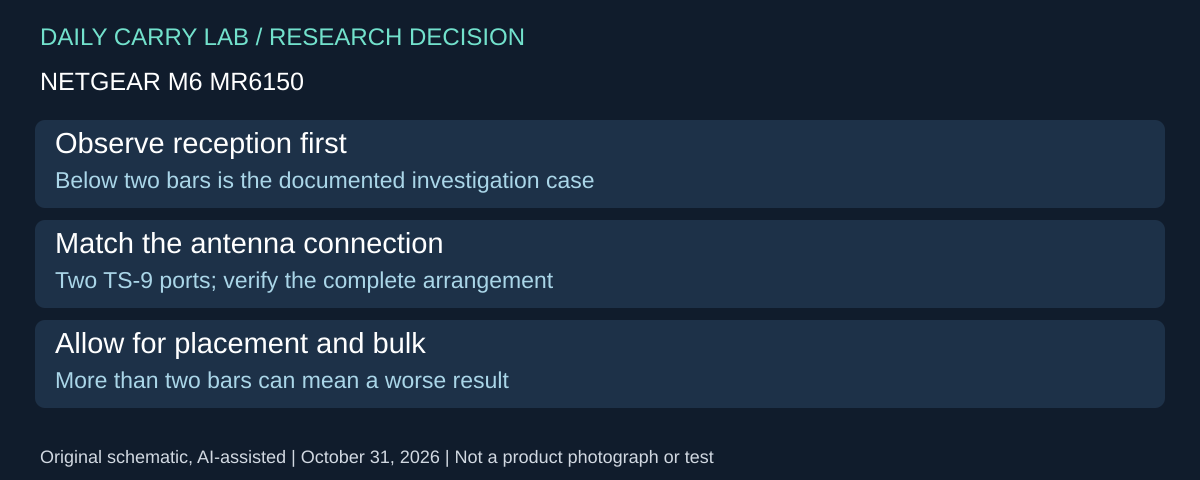
M6: choose visitor access before sharing your personal Wi-Fi credentials
Research checked November 2, 2026. NETGEAR’s June 2024 M6/M6 Pro manual, which explicitly lists MR6150 on its cover, documents Guest WiFi on printed pages 35–37. It is disabled by default and provides temporary visitors a separate connection from personal Wi-Fi devices. That adds a different buying question from supported bands or the maximum device count: how you intend to share the connection.
| Sharing requirement | Documented control | Operational drawback |
|---|---|---|
| Give temporary visitors separate credentials | WiFi → Guest WiFi; view its QR code and credentials after enabling | Enabling or disabling restarts Wi-Fi |
| Change guest access between groups | Edit guest network name/password; optional generated passphrase | Connected devices must authenticate again after changes |
| Permit or block named devices | Web interface Settings → Security → Access Controls; choose an allow or block list | Entries require device name and MAC address |
| Restrict selected websites | Website Filters has allow/block lists and an unrestricted-device list | Filtering does not apply to unrestricted devices |
The access-control and website-filter details are on printed pages 64–66. These are separate controls: sharing a guest password does not by itself populate a device allow list or a website policy. The manual does not establish complete isolation among guest clients, enterprise security, a parental-control bypass guarantee, or a separate cellular data allowance for visitors. Do not infer those properties from the word “guest.”
Our suggested preparation is to identify which travelers need internet, which personal devices should keep their normal credentials, and when reconnecting would be least disruptive. Configure and check the intended arrangement before a call or shared work session. This is owner preparation advice; DCL has not performed a security, isolation or filter-evasion test. Keep the carrier and purchased-data checks above when deciding who can use the shared connection.
Budget and selection: if the existing MR6150’s documented visitor controls meet the requirement, a second travel router is not automatically necessary. Current hardware and service totals are unknown. If client isolation or a managed security policy is essential, obtain explicit evidence for that exact requirement before purchasing. This M6-family procedure does not approve equivalent GlocalMe UPP controls or change its service terms.
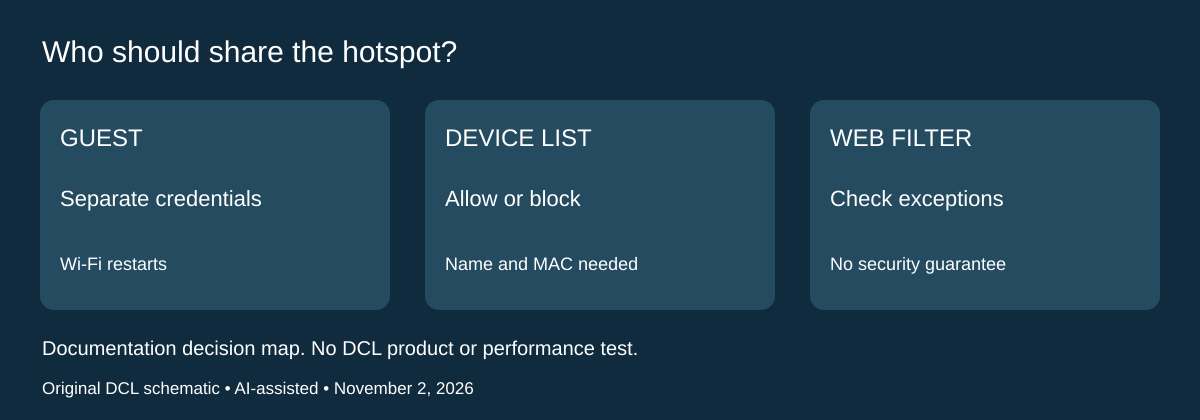
Shop the researched models
These Amazon links are affiliate links. Daily Carry Lab may earn a commission from qualifying purchases. Match the model and included contents to your needs; this guide is based on manufacturer-source research, without hands-on testing.
-
NETGEAR Nighthawk M6 MR6150-100NAS
Check NETGEAR Nighthawk M6 MR6150-100NAS on Amazon -
GlocalMe UPP (Blue)
Check GlocalMe UPP (Blue) on Amazon
Sources and limits
This guide compares published specifications and source documentation. Daily Carry Lab has not performed hands-on tests of the products in this guide. Consult the dated sources and verify the exact model and current terms before buying.
Related guides
iPhone 18 Pro: Wrist Strap or Crossbody Strap, with the right case
Compare exact Apple Wrist and Crossbody strap packages for iPhone 18 Pro by attachment, length, complete cost and limitations.
Portable label makers: choose phone control or a built-in keyboard
Compare Brother PT-P300BT CUBE and PT-H110 by phone dependence, TZe tape widths, power and cable-label workflow.
Travel AA/AAA chargers: match the cells, slots and USB input
Compare four-slot AA/AAA charging systems by exact chemistry and USB input. Includes conditional XTAR BC4 research and explicit operating-manual limits.
USB-C bike front lights: compare modes, mounts and charging
Compare Lezyne Micro Drive 800+ and Fenix BC15R using exact modes, rated runtime, battery design and mounting limits, without road-certification claims.