By Daily Carry Lab. Primary documentation checked October 15, 2026 (Pacific).
Affiliate disclosure: As an Amazon Associate, Daily Carry Lab earns from qualifying purchases. Retailer links may earn a commission at no extra cost to you.
Research disclosure: We have not tested these products. We select exact models using manufacturer documentation, documented compatibility and the practical decisions below. No DCL ratings, measured results or health outcomes are claimed.
An HDMI label on a hub does not establish your iPad’s output resolution or turn every app into a desktop workspace. Identify the exact iPad generation, check Apple’s display limits, and then decide whether the hub should travel attached to the tablet or sit on a desk.
We compare Satechi Mobile Pro Hub SD ST-MPHSDM with Satechi Aluminum Stand & Hub for iPad Pro ST-TCSHIPM. Their manufacturer guides describe the ports and setup. They solve different physical jobs: a mobile adapter with an included extension cable versus a stand with an integrated host cable. We have not tested their fit, stability, display output or transfer speed.
Model and compatibility table
Scroll horizontally to read all comparison columns →
| Exact hub | Connection and mounting decision | HDMI specification | Charging and other ports | Principal constraint |
|---|---|---|---|---|
| Mobile Pro Hub SD ST-MPHSDM | Direct USB-C attachment or included extension cable for a case/stabler connection | Up to 4K60 over a direct HDMI-to-HDMI connection | USB-C PD up to60W; USB3.0; UHS-I SD/microSD;3.5mm headset connection | Manufacturer compatibility list is bounded; unlisted iPads are not confirmed |
| Aluminum Stand & Hub ST-TCSHIPM | Stand with built-in USB-C host cable | Up to4K60 over direct HDMI | USB-C PD up to60W, power only; USB-A up to5Gbps; simultaneous SD/microSD;3.5mm headphones or microphone | PD port does not carry data/video; USB-A does not support charging or Apple SuperDrive |
The Mobile Pro Hub SD guide and Stand & Hub guide document these limits. Maximum hub capability is an upper bound for the adapter, not a promise for every iPad.
Satechi’s ST-MPHSDM compatibility list explicitly includes iPad Pro11-inch generations1–4, Pro12.9-inch generations3–6, Air4/5, iPad10th generation and mini6. It says unlisted devices have not been confirmed. Do not infer later Pro/Air compatibility solely from the USB-C connector. For ST-TCSHIPM, confirm your exact generation with its current compatibility documentation before ordering; the setup guide’s general USB-C language is insufficient for an all-iPads guarantee.
Match Apple’s HDMI ceiling
Apple’s USB-C iPad guide separates HDMI2.0 output by iPad model. For the older iPads common to the Mobile Pro Hub SD list, Pro models and Air5 can reach4K60 with a suitable adapter, while Air4, mini6 and iPad10 are limited to4K30. An adapter advertised4K60 cannot remove the latter limit.
Display resolution is also separate from the iPadOS workspace and app behavior. Confirm whether the exact iPad, installed iPadOS version and app support your intended external-display workflow. We do not promise extended desktop, two independent screens or app-specific full-screen output from an HDMI socket alone. If the job is a MacBook rather than an iPad, use our MacBook USB-C hub guide.
Power, cards and audio
The60W PD figure is a published charging-path maximum. It is not a claim that the iPad accepts60W or that all adapter input reaches the battery. Budget for a separate PD supply and charging cable. The mobile hub guide recommends a30W supply or higher; that recommendation is not a measured charging guarantee while accessories are attached.
Use the mobile hub’s card slots through Files on iPadOS; Satechi documents UHS-I support. The stand guide permits simultaneous SD and microSD use but does not establish a measured combined transfer rate. A faster card cannot guarantee a faster import through the whole iPad/hub/storage path.
Budget and drawbacks
Scroll horizontally to read all comparison columns →
| Physical job | Budget evidence checked October15 | Extra items to price | Drawback to resolve before checkout |
|---|---|---|---|
| Mobile adapter in a small tablet kit | Current exact-variant total unknown | HDMI cable,PD supply and charging cable | Check case clearance and exact iPad compatibility; use the included extension if appropriate |
| Desk stand with integrated hub | Current exact-variant total unknown | PD supply,charging cable and HDMI cable | Extra stand to pack; PD socket cannot replace a USB-C data socket |
| Existing hub you already own | New spending may be unnecessary; replacement cost unknown | Only missing cables if compatible | Check model-specific display and power documentation before assuming equivalence |
Our selection is based on documented ports and distinct setup needs, not a claim that two products are the best performers in a market-wide test. For a travel purchase, verify the exact iPad generation and case first; those checks can eliminate an unsuitable adapter before its port count matters.
A storage workflow needs more than a hub socket
Before paying for a different iPad hub because a drive does not appear, separate the drive’s layout from the adapter’s connector and power path. Apple’s external-storage guide, checked October 22, 2026, requires a single data partition and lists APFS, encrypted APFS, HFS+, exFAT, FAT32 and FAT as supported formats. A USB port count does not establish those conditions.
Scroll horizontally to read all comparison columns →
| What needs checking | Documented or practical question | Purchase implication |
|---|---|---|
| An existing USB drive or card | Does its partition layout and format meet Apple’s requirements? | Another hub may leave the same incompatibility |
| A connected drive is not visible | In Files, use Browse and look under Locations; Browse may need tapping again | Check the file-browser path before replacing accessories |
| An external hard drive | Does it supply its own power, and is the exact iPad’s supported powered path available? | Add the required power equipment to the whole-kit decision |
| A file is visible but will not open | Does the intended app support the content? | Storage access is not an app compatibility guarantee |
Apple says external hard drives often need an external power source. Its powered-USB-hub example is expressly tied to models supporting Thunderbolt/USB 4; do not turn that statement into certification of every iPad, hub and hard-drive combination. The selected Satechi hub’s power-only PD socket above is still not a data socket for a drive. Likewise, neither its nominal 60W charging path nor a faster drive label proves usable peripheral power under your workload.
If a format change is required, protect wanted data and use the appropriate device instructions before making changes; this guide has not checked your drive or created a backup. Reformatting is not a casual diagnostic step to try on the only copy of important files.
For purchase planning, list the iPad generation, exact hub, storage device, data connection and any supply/cable required together. Current delivered totals are unknown, and this source does not certify an extra drive or powered-hub bundle. We have not tested storage mounting, throughput or simultaneous display-and-drive operation. Establish the intended file workflow before deciding that a higher port count is worth more money.
Compare a direct USB-C display kit before buying an HDMI hub
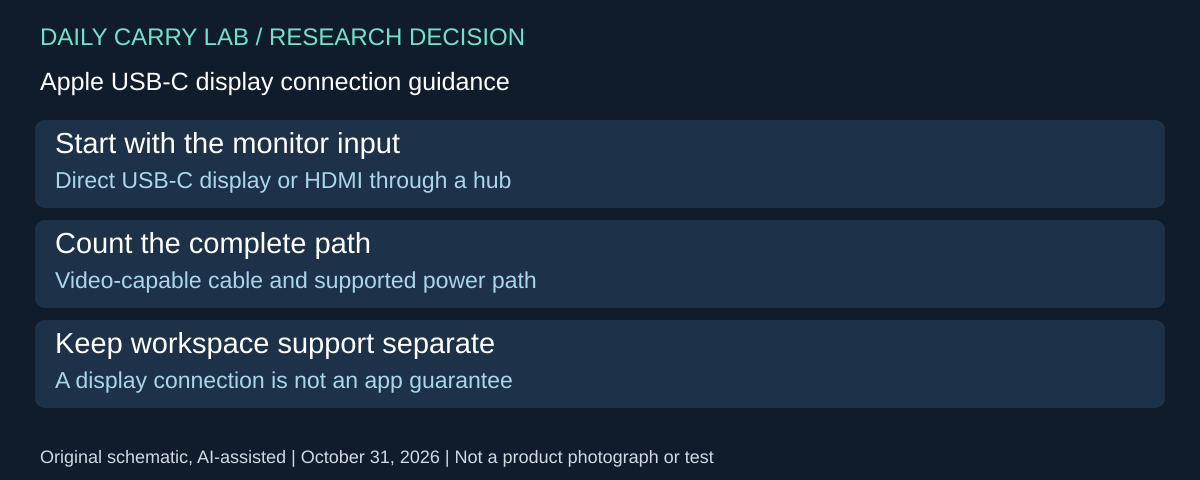
If the desk already has a suitable USB-C monitor, a hub may not be the smallest way to connect the screen. Apple’s USB-C iPad connection guide, checked October 31, 2026, describes direct USB-C display connections using DisplayPort. It also says some USB-C displays can charge the iPad while connected, and calls for a high-bandwidth cable for high-resolution output. Those qualifications are the starting point for comparing the complete kit.
Scroll horizontally to read all comparison columns →
| Arrangement to investigate | Items to confirm | Tradeoff |
|---|---|---|
| Direct iPad-to-USB-C display | Exact monitor video input, compatible iPad and suitable video cable | Does not by itself supply the separate card/audio ports you wanted from a hub |
| HDMI through a selected Satechi hub | Exact iPad compatibility, HDMI cable and the documented PD charging path above | More components, but useful additional connections |
| Keep the existing supported arrangement | List the missing function before replacing anything | A new connector count alone may not solve the task |
Our selection advice is to make the monitor the first item on the checklist. Record its exact model and supported input, then list whether the session needs a card reader, wired audio or other accessories at the same time. If the only task is displaying supported content and charging through a documented monitor path, investigate the direct connection before purchasing a hub. If those extra ports are essential, the simpler cable path has not replaced their function.
Do not plug a display into the selected hub’s power-only USB-C socket and treat that as the direct-display route. That socket retains the limitations described above. Equally, the USB-C shape on a monitor or cable alone does not establish the required video capability or charging behavior. Obtain the exact monitor and cable documentation when these are uncertain.
Apple distinguishes mirroring, an app-specific second-screen experience and an extended workspace on supported iPads. We have not established that the proposed monitor, iPadOS version or app supplies the workspace you intend. Confirm that before buying for desktop-style multitasking; a successful physical connection is only part of the decision.
Budget and drawbacks: delivered costs for a suitable cable or hub kit are unknown. Reusing a supported monitor and cable may avoid an unnecessary hub purchase, but no price saving is quantified. DCL has not tested simultaneous charging, display quality, app behavior or the Satechi products. This section adds no monitor recommendation, new retailer mapping or universal extended-display promise.
Shop the researched models
These Amazon links are affiliate links. Daily Carry Lab may earn a commission from qualifying purchases. Match the model and included contents to your needs; this guide is based on manufacturer-source research, without hands-on testing.
-
Satechi Mobile Pro Hub SD
Space Gray · ST-MPHSDM
View Satechi Mobile Pro Hub SD — Space Gray · ST-MPHSDM on Amazon -
Satechi Aluminum Stand & Hub
Space Gray · ST-TCSHIPM
View Satechi Aluminum Stand & Hub — Space Gray · ST-TCSHIPM on Amazon
Sources and limits
This guide compares published specifications and source documentation. Daily Carry Lab has not performed hands-on tests of the products in this guide. Consult the dated sources and verify the exact model and current terms before buying.
Related guides
Portable document scanners: choose the feed, power and file workflow
Compare Epson ES-50 and ES-60W simplex workflows with discontinued Brother DS-740D duplex limits, USB power and current software checks.
USB-C Ethernet adapters: match the host, driver and network rate
Compare TP-Link, Plugable and Belkin INC012 Ethernet adapters by host connector, link rate, tether reach and complete kit. Research; throughput untested.
Single-port 65W laptop chargers: profiles, plugs and cable limits
Compare Anker A2663 and Supertiny 65W for one USB-C laptop, including PPS evidence, plug variants and cable limits.
E Ink note-taking tablets: Scribe, reMarkable or BOOX?
Compare exact Kindle Scribe, reMarkable Paper Pro and BOOX Go10.3 Gen II models by pens, file export, lighting and subscription limits.