
By Daily Carry Lab. Primary documentation checked October 14, 2026 (Pacific).
Affiliate disclosure: As an Amazon Associate, Daily Carry Lab earns from qualifying purchases. Retailer links may earn a commission at no extra cost to you. Manufacturer links support the documented claims.
Research disclosure: We have not tested these products. Selection is based on primary documentation and the compatibility decisions below; no DCL ratings or measured performance are claimed.
Choose the power workflow before the advertised picture size. XGIMI MoGo 3 Pro suits a plan with external power; Nebula Capsule 3 D2425 offers a documented built-in-battery workflow. We selected these two for their published power and connection details, not a tested picture-quality ranking. A projector is useful only if the room, surface, power source and content connection work together.
Keep brightness units and operating modes attached
XGIMI rates MoGo 3 Pro at 450 ISO lumens. Nebula rates Capsule 3 at 200 ANSI lumens. Retain those unit labels rather than turning the numbers into a measured head-to-head brightness ratio. XGIMI identifies ISO 21118 and says its nominal white-light output is measured under ideal laboratory conditions in Performance/High Power mode; it also notes possible color differences and increased fan speed in that mode. Neither figure is a DCL measurement. XGIMI specifications and footnotes, Capsule 3 specifications.
For travel planning, inspect the actual room’s light control and the available wall or screen. A claimed maximum diagonal does not establish readable text or an enjoyable picture at that size in daylight. We do not promise daylight performance or recommend one as brighter on an independently comparable test.
| Documented characteristic | MoGo 3 Pro | Capsule 3 D2425 |
|---|---|---|
| Display resolution | 1080p | 1080p |
| Rated brightness | 450 ISO lumens, specified laboratory mode | 200 ANSI lumens |
| Power workflow | External source; PowerBase stand sold separately | Built-in battery; up to 2.5 hours in Eco mode |
| Power connection | USB-C charging interface, PD 3.0 | PD 20 V / 2.25 A in specification table |
| Wired video input | Micro HDMI with ARC support | HDMI 2.1 / ARC in specification table |
| Streaming platform | Google TV with licensed Netflix | Google TV with Netflix certification |
Sources: XGIMI, Nebula. These are documented modes and interfaces, not guarantees about every app, subscription, adapter or room.
MoGo needs a complete external-power plan
XGIMI describes using an external Type-C 65W power bank or its separately sold powered stand. Its power footnote requires a third-party bank or adapter between 65W and 150W and gives examples of 65W at 20 V / 3.25 A and 100W at 20 V / 5 A. That is more specific than a bank merely having a USB-C socket or a large capacity label.
The same current footnote says the unit switches to Eco mode when the bank’s output is below 150W. Keep that condition visible: the page’s 65W support headline does not establish full rated brightness from every supported external source. Confirm the intended source and mode with XGIMI if full-power operation is a requirement. Do not assume that buying an arbitrarily higher-wattage charger overrides the specified range.
Choose a suitable cable for the negotiated current, and check the bank’s single-port output with your other devices connected. Our portable charging guides explain the broader power-bank choice. A bank’s total rating does not establish the power remaining on one port while it also charges a phone.
Capsule’s battery rating has an Eco-mode condition
Nebula lists up to 2.5 hours of movie playback in Eco mode. That is not a guarantee that a two-and-a-half-hour film, setup time and pauses fit on one charge. The specification table states PD 20 V / 2.25 A, equivalent to 45W as an electrical input reference; we do not infer a guaranteed charging speed or simultaneous-playback result from that number.
If a whole screening matters, pack the documented charging setup and establish where it can be used. Check airline and destination rules for your complete battery kit separately. No transport approval follows merely from a projector being described as portable.
USB-C power does not establish USB-C video
XGIMI explicitly labels its USB-C interface as charging. Use the documented Micro HDMI path for a wired video source rather than buying a USB-C display cable on connector shape alone. Capsule’s specification lists HDMI. We have not established a direct USB-C DisplayPort video path for either projector.
Before a trip, connect the actual laptop or other source using the correct HDMI cable and any required host adapter. For a phone, check the phone maker’s video-output support and the content service’s restrictions. A streaming platform or Netflix certification does not establish offline downloads or playback without internet. Open the intended service, sign in and confirm its requirements before relying on the projector away from home.
Measure the packed kit, not just the projector
XGIMI lists a 2.43 lb projector and a headline envelope of 8.07 × 3.74 inches. Nebula’s table lists Capsule 3 at 78 × 78 × 160 mm and 0.85 kg. Those product dimensions and masses exclude your extra bank, powered stand, HDMI adapter and protective case. We have not measured a packed bag or drop resistance.
| Choice | Budget status checked October 14, 2026 | Useful reason | Drawback or additional cost to check |
|---|---|---|---|
| MoGo 3 Pro standard projector | Current checkout total unknown | External-power workflow and Micro HDMI | Bank/stand and mode requirements; accessories add bulk |
| Capsule 3 D2425 black | Current checkout total unknown | Built-in battery for an Eco-mode session | Rated endurance is conditional; plan charging for longer viewing |
| Use an existing laptop or room display | No new projector purchase if suitable | Fewer projection and power dependencies | Smaller display or destination-dependent availability |
Retailer identity checks cover MoGo 3 Pro B0D8HRH431 and Capsule 3 B0CHW11C8H, not MoGo 4, Capsule 3 Laser or a tripod bundle. Check the exact selected kit again at checkout. Photography reuse remains unverified. Buy only after the complete power, video and packing plan meets the trip’s actual needs.
Choose the Bluetooth direction before adding another travel speaker
“Bluetooth support” can describe two different jobs. You may want the MoGo 3 Pro to play music received from a phone, or to send the projector’s audio to headphones or a separate speaker. Establish which direction you need before buying another accessory or troubleshooting the wrong pairing screen.
XGIMI’s MoGo 3 Pro Beginner Guide, checked October 24, 2026, documents both. For receiving phone music, activate atmosphere speaker mode by tilting the projector vertically, then find G0035 in the phone’s Bluetooth settings. The maker says the projector is discoverable only in that mode. For sending audio to headphones or speakers, it instead uses the projector’s Settings, Remote & Accessories, Pair accessory menu, with the receiving device in pairing mode.
| Intended job | Device that starts the documented search | Purchase question |
|---|---|---|
| Phone music through the projector | Phone searches for the projector in atmosphere speaker mode | Could the existing projector cover this task? |
| Projector audio through headphones | Projector searches for the headphones | Does the actual receiving device pair and play as required? |
| Projector audio through another speaker | Projector searches for that speaker | Is the extra packed speaker useful for your setup? |
| Phone video on the projected image | Follow a documented video connection | Bluetooth audio pairing alone does not establish video input |
Our advice is to try the required direction with the actual equipment before adding another speaker to the bag. Include the projector’s external-power arrangement in that comparison. Using hardware already packed may be convenient, but does not establish lower power consumption, equivalent sound or suitability for a shared quiet room.
Budget and drawbacks: current speaker and accessory totals are unknown. The connection procedure supplies no measured latency, lip-sync, volume or audio-quality result. Do not infer simultaneous operation of both directions, a particular codec or a video connection from these instructions. The documented Micro HDMI and power checks above still govern the projection kit. We have not tested Bluetooth reliability, and this MoGo 3 Pro procedure does not certify Capsule 3 behavior.
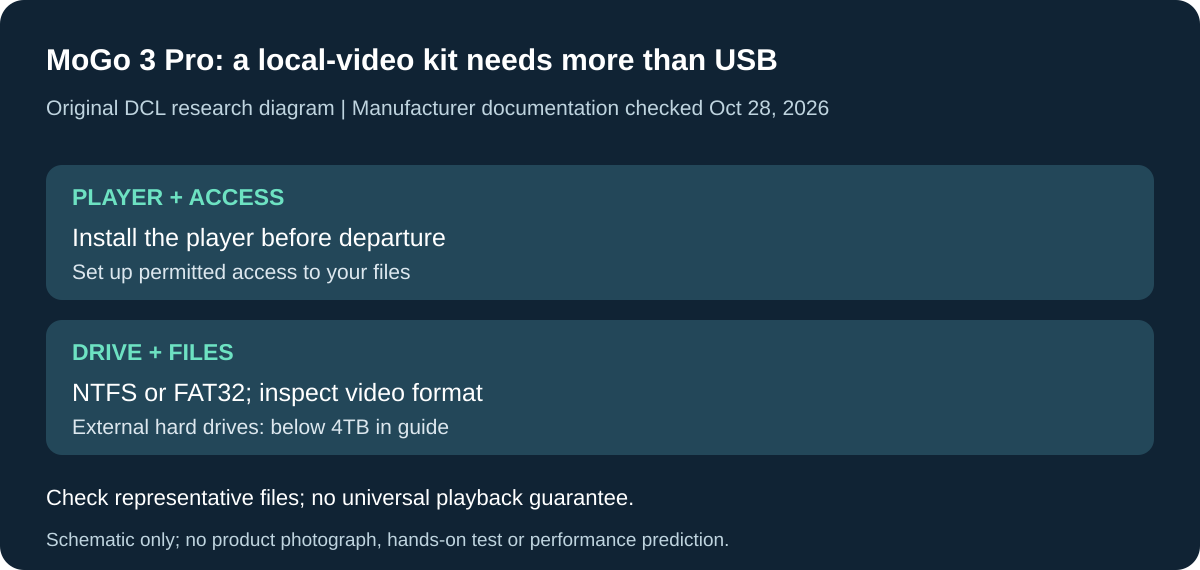
Original DCL research schematic, October 28, 2026. Documented setup boundaries, not a product photo or DCL test; see the source and qualifications below.
Prepare the local-file workflow before leaving Wi-Fi
If you want MoGo 3 Pro for videos carried on a drive, prepare more than a USB connector. XGIMI’s setup guide says the Google TV installation lacks a built-in file manager and directs owners to install a third-party player. Its illustrated VLC workflow includes granting that player file access before opening the attached drive. MoGo 3 Pro beginner guide, USB-drive playback section, checked October 28, 2026.
| Offline-kit requirement | XGIMI’s documented condition | Decision before packing |
|---|---|---|
| Find and open local video files | Install a third-party player; the guide demonstrates VLC | Complete app setup and permitted file access before relying on local playback |
| Drive filesystem | Guide lists NTFS or FAT32 | Do not assume an exFAT travel SSD is supported by this documented path |
| External hard-drive capacity | Guide says below 4TB | A drive advertised as exactly 4TB is not established by a below-4TB limit |
| 4K local video | Guide says MoGo 3 Pro cannot play 4K videos | Do not assume a 1080p display specification implies automatic 4K-file conversion |
The capacity wording specifically concerns external hard drives; we do not convert it into a universal certified capacity for every flash drive or SSD. XGIMI also says loading time varies with the number of files. None of this is a supported-codec list, a promise that every video container opens, or evidence of a tested import speed. Check representative files through the intended player before depending on them during a trip.
This changes the buying sequence: establish the file format and app workflow, then choose storage. A larger or faster drive may add no benefit when the projector cannot use the existing filesystem or video file. Keep a separate copy before any format change, since reformatting can erase stored files. This guide does not ask you to reformat a drive or supply a formatting procedure.
Budget and selection: the existing drive may be sufficient if the complete documented path works for your files. Current drive, player and accessory costs are unknown; we have not verified third-party app pricing or download availability for every account or region. Arrange account/app access where required before departure. Do not infer that local video playback provides offline access to subscription downloads or bypasses a streaming service’s restrictions.
These constraints are for MoGo 3 Pro’s documented local-drive path, not the Nebula Capsule 3 candidate. The earlier external-power and video-input requirements still apply. DCL has not installed these apps, tested files, or established that another player’s decoder changes the manufacturer’s stated 4K limitation.
Check screen placement before buying the larger image
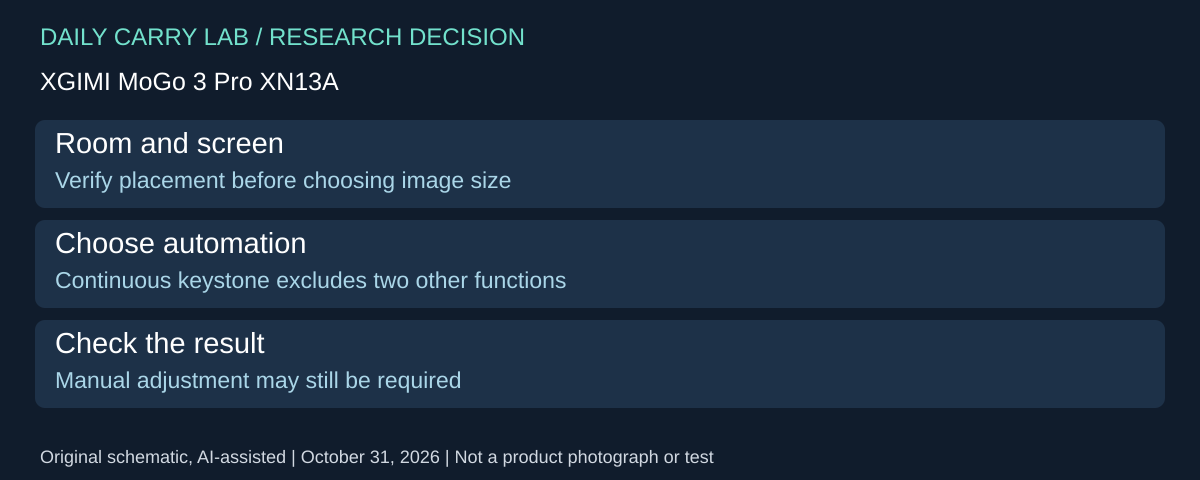
MoGo 3 Pro’s automatic setup features do not remove room-fit constraints. XGIMI’s specification table and notes 5–8, checked October 31, 2026, list a 1.2:1 throw ratio and recommend 60–120-inch projection for the viewing experience, despite the broader 40–200-inch specification.
| Placement choice | Documented boundary | Decision |
|---|---|---|
| Sideways projection | Side throw angle should not exceed 40° for calibration | Inspect the available placement first |
| Continuous auto keystone | Disable screen alignment and obstacle avoidance | These automatic functions are not a simultaneous checklist |
| Automatic screen filling | Image must cover the screen border; non-16:9 screens may remain partly uncovered | Match screen shape and placement |
XGIMI also warns that automatic correction can fail and require manual adjustment. Its obstacle avoidance does not promise to identify every obstruction. Treat the room, support position and clear projection area as purchase requirements alongside power.
Selection and budget: use the intended space to choose the kit before buying a screen or stand. Accessory totals are unknown. These are manufacturer setup limits, not measured sharpness, a throw-distance calculator or a guarantee of usable text at the largest size. Capsule 3 needs its own placement evidence.
MoGo 3 Pro: choose phone mirroring around the app and network
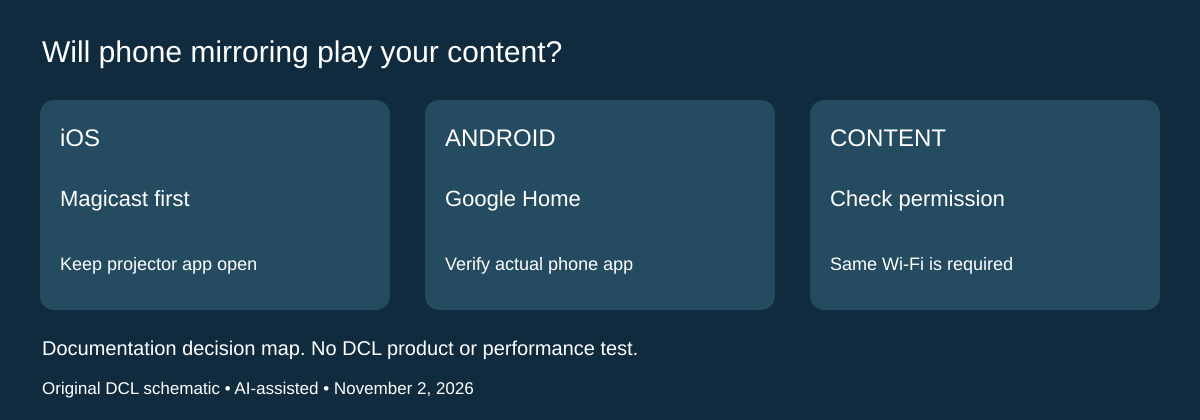
Research checked November 2, 2026. Before buying MoGo 3 Pro as a wireless phone screen, identify the content app and the network you will actually have. XGIMI’s beginner guide, Screen Mirroring, documents different iOS and Android setup paths. A projector’s Bluetooth menu is not the phone-screen setup described here.
| Phone path | XGIMI’s documented setup | Travel drawback |
|---|---|---|
| iPhone or iPad screen mirroring | Install Magicast on the projector, permit display over other apps, leave Magicast open, and use Screen Mirroring on the phone | App installation and permission setup precede playback |
| Android screen mirroring | Use Google Home, select the projector under Devices and choose Cast my screen | Requires the relevant app and device discovery |
| Both paths | Phone and projector use the same Wi-Fi network | A working cellular connection on the phone alone does not establish this arrangement |
| Black screen or distorted app content | XGIMI says an app may disable mirroring | Another wireless accessory does not establish permission to display that content |
The guide lists the default projector name as G0035. For Google Home troubleshooting it also calls for the same Google account on both devices, updated software and agreed permissions. These are the maker’s setup requirements, not a test of every account, phone or streaming service. No supported-app list or successful subscription-video playback is established here.
The buying check is straightforward: name one representative permitted video or presentation, the phone app that opens it, and the intended network. Verify that combination before treating wireless playback as the reason to buy. On shared accommodation Wi-Fi, merely seeing the same network name does not prove devices can discover one another; ask the network operator about the connection you need. DCL has not tested hotel networks or these apps.
Budget and selection: app, network and alternative connection totals are unknown. An existing supported app/network arrangement may avoid buying another cable, but the local-drive and wired-input paths above remain separate choices. Do not buy a converter in response to an app restriction without establishing an allowed playback path. This MoGo procedure does not establish Capsule 3 support, offline subscription access, or a way around content protection.
Shop the researched models
These Amazon links are affiliate links. Daily Carry Lab may earn a commission from qualifying purchases. Match the model and included contents to your needs; this guide is based on manufacturer-source research, without hands-on testing.
-
XGIMI MoGo 3 Pro
Check XGIMI MoGo 3 Pro on Amazon -
Nebula Capsule 3 (D2425)
Check Nebula Capsule 3 (D2425) on Amazon
Sources and limits
This guide compares published specifications and source documentation. Daily Carry Lab has not performed hands-on tests of the products in this guide. Consult the dated sources and verify the exact model and current terms before buying.
Related guides
iPhone 18 Pro: Wrist Strap or Crossbody Strap, with the right case
Compare exact Apple Wrist and Crossbody strap packages for iPhone 18 Pro by attachment, length, complete cost and limitations.
Portable label makers: choose phone control or a built-in keyboard
Compare Brother PT-P300BT CUBE and PT-H110 by phone dependence, TZe tape widths, power and cable-label workflow.
Travel AA/AAA chargers: match the cells, slots and USB input
Compare four-slot AA/AAA charging systems by exact chemistry and USB input. Includes conditional XTAR BC4 research and explicit operating-manual limits.
USB-C bike front lights: compare modes, mounts and charging
Compare Lezyne Micro Drive 800+ and Fenix BC15R using exact modes, rated runtime, battery design and mounting limits, without road-certification claims.